
CasperLet Configuration
|
m (→Per-Unit Group Invites)
|
m (→Notification IMs)
|
||
| Line 34: | Line 34: | ||
== Notification IMs == |
== Notification IMs == |
||
| - | To begin configuring your CasperLet account for automatic |
+ | To begin configuring your CasperLet account for automatic notifications to the tenants and staff, you first need to go to the [https://let.casperdns.com/groups.php Group Bots] page. This is the page where you are going to be entering all of your personal bot details. |
# Visit the [https://let.casperdns.com/groups.php group bots] page on your CasperLet account. |
# Visit the [https://let.casperdns.com/groups.php group bots] page on your CasperLet account. |
||
| - | # Enter your |
+ | # Enter your bot's full name into the first field (Example Resident, Someone Linden). |
| - | # Enter your [[ |
+ | # Enter your [[Bot access code | bot access code]] into the second field. |
| - | + | ||
| - | [[File: |
+ | [[File:CasperTech_Let_4.png|frame|link=]] |
[[Category:Existing customers]] |
[[Category:Existing customers]] |
||
[[Category:CasperTech Plugin]] |
[[Category:CasperTech Plugin]] |
||
__NOTOC__ |
__NOTOC__ |
||
Revision as of 15:21, 23 February 2015
Currently, you can configure SmartBots for Bulk Group Invites, Per-Unit Group Invites and Notification IMs.
Bulk Group Invites
To begin configuring all of your CasperLet rental units for automatic group invitations, you first need to go to the Group Bots page. This is the page where you are going to be entering all of your group details.
- Visit the group bots page on your CasperLet account.
- Enter your group name into the first field.
- Enter your group security code into the second field.
- Finally, put the name (not title) of the role you wish to invite to into the third field.

Per-Unit Group Invites
To begin configuring one of your in-world rental units for invitations with SmartBots, first visit your units page. This is where you will be entering your SmartBots group information.
- Visit the units page on your CasperLet account.
- Click the settings icon next to the unit you wish to add group invitations to.
- Scroll down to the 'Group Invite Bots' section and click 'add new bot'
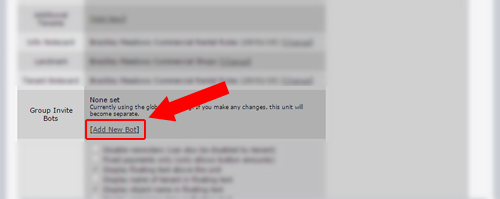
- Select 'SmartBots' from the list.
- Enter the name of your group in the first field.
- Put the name (not title) of the role you wish to invite to into the second field.
- Finally, enter your group security code into the last field.
- Click add and save the configuration.


Notification IMs
To begin configuring your CasperLet account for automatic notifications to the tenants and staff, you first need to go to the Group Bots page. This is the page where you are going to be entering all of your personal bot details.
- Visit the group bots page on your CasperLet account.
- Enter your bot's full name into the first field (Example Resident, Someone Linden).
- Enter your bot access code into the second field.
