
Support Bot (Alive Module)
| Line 23: | Line 23: | ||
# Customer sends the first line of the message (for example, "Hello") |
# Customer sends the first line of the message (for example, "Hello") |
||
# Bot replies: ''"...please keep typing your message. Say "done" when you finish typing your question/inquiry."'' |
# Bot replies: ''"...please keep typing your message. Say "done" when you finish typing your question/inquiry."'' |
||
| - | # Bot records the message until customer say "done" |
+ | # Bot records the message until customer say "done" [[Image:SupportBot1.png|link=|center|border|550px]]
|
=== Step 2. Delivering message to all your human support === |
=== Step 2. Delivering message to all your human support === |
||
| Line 31: | Line 31: | ||
This is a message sent to your support staff: |
This is a message sent to your support staff: |
||
| - | + |
[[Image:SupportBot2.png|link=|center|border|550px]]
|
|
| - | + | ||
| - | + | ||
| - | + | ||
| - | + | ||
| - | + | ||
| - | = |
+ | |
| - | + | ||
| - | + | ||
| - | + | ||
| - | + | ||
=== Step 3. Picking up the message === |
=== Step 3. Picking up the message === |
||
When someone of your support staff comes online, he replies to the bot with special text ("CONFIRM-CONVO 36") and bot assigns that contact to the manager. |
When someone of your support staff comes online, he replies to the bot with special text ("CONFIRM-CONVO 36") and bot assigns that contact to the manager. |
||
| + | |||
| + | [[Image:SupportBot3.png|link=|center|border|550px]] |
||
=== Step 4. Checking the history of support messages === |
=== Step 4. Checking the history of support messages === |
||
Revision as of 19:48, 11 December 2012
Support Bot Module turns your bot into 24/7 support machine. Your customers send inquiries directly to the bot (using IM). Bot accepts these messages and notifies your human support about new message.
Overview
Bot stands in your office. Customers are able to IM the bot:
- bot accepts customers' messages and stores them in the database
- the notification is being sent to your human support staff
- human support (or you) pick up the messages and reply
You won't loose a single message: bot is online 24/7. All IMs are being stored in the database, and you can access them using web browser.
Support Bot activity step by step
The following steps describe the work of Support Bot. You can try it live at SmartBots office (we use this bot ourselves).
Step 1. Accept customer's message
You should position your Support Bot in office and show that bot accepts support inquiries (the poster is available).
- Customer starts by sending IM to the bot.
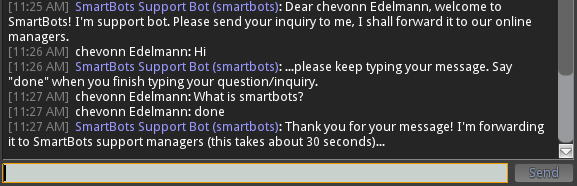
- Bot sees that someone is typing a message and replies immediately: "Dear Glaznah Gassner, welcome to SmartBots! I'm support bot. Please send your inquiry to me, I shall forward it to our online managers."
- Customer sends the first line of the message (for example, "Hello")
- Bot replies: "...please keep typing your message. Say "done" when you finish typing your question/inquiry."
- Bot records the message until customer say "done"
Step 2. Delivering message to all your human support
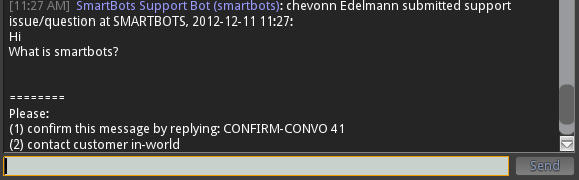
You have someone who takes care of customer inquiries (you or your support managers). Bot sends the notification to all your managers, asking them to contact that customer.
This is a message sent to your support staff:
Step 3. Picking up the message
When someone of your support staff comes online, he replies to the bot with special text ("CONFIRM-CONVO 36") and bot assigns that contact to the manager.

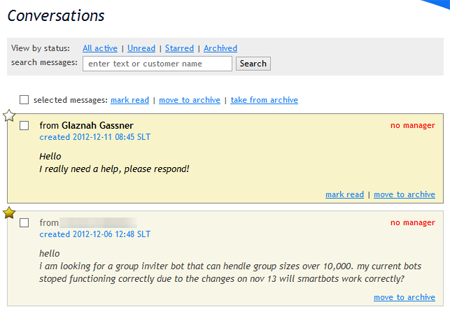
Step 4. Checking the history of support messages
All support messages are being stored, you can view them at any time using your browser:
Purchasing Support Bot
You can turn your bot into Alive Support:
- Purchase the Alive Support Bot module
- Assign it to your bot
This page explains the process in details.