
CasperVend Configuration
|
m
|
m (→Warning)
|
||
| Line 10: | Line 10: | ||
# Press 'save' and check your vendor.[[File:CasperTech_Vend_2.png|frame|link=]] |
# Press 'save' and check your vendor.[[File:CasperTech_Vend_2.png|frame|link=]] |
||
| - | == |
+ | == Information == |
Once saving your product configuration, the group security code will be encrypted and will be seen as something similar to "da39a3ee5e6b4b0d3255bfef95601890afd80709". This is not an error, this is for your own protection and protects your SmartBots account. |
Once saving your product configuration, the group security code will be encrypted and will be seen as something similar to "da39a3ee5e6b4b0d3255bfef95601890afd80709". This is not an error, this is for your own protection and protects your SmartBots account. |
||
[[Category:Existing customers]] |
[[Category:Existing customers]] |
||
__NOTOC__ |
__NOTOC__ |
||
Revision as of 15:43, 23 February 2015
Configuring CasperVend for invites
To configure SmartBots group invitations for CasperVend, simply follow the instructions below after you have logged into your CasperVend account.
- To begin configuring your CasperLet products for automatic group invitations, you first need to go to the Products page.
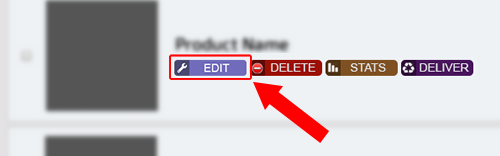
- Press the purple 'edit' button next to one of your products.
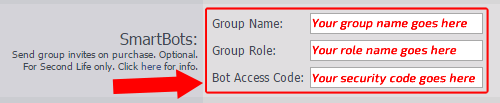
- Scroll down to the SmartBots section.
- Enter your group name into the first field.
- Enter the name (not title) of the role you wish to invite to into the second field.
- Finally, enter your [Security Code|group security code] into the last field.
- Press 'save' and check your vendor.


Information
Once saving your product configuration, the group security code will be encrypted and will be seen as something similar to "da39a3ee5e6b4b0d3255bfef95601890afd80709". This is not an error, this is for your own protection and protects your SmartBots account.