
Bot Control Panel
The Personal Bot Control Panel provides a simple and convenient way to manage your Personal Bot in Second Life. From a single interface, you can monitor your bot's status, update its settings, manage its inventory, access additional features, and configure add-ons.
Accessing the Personal Bot Control Panel
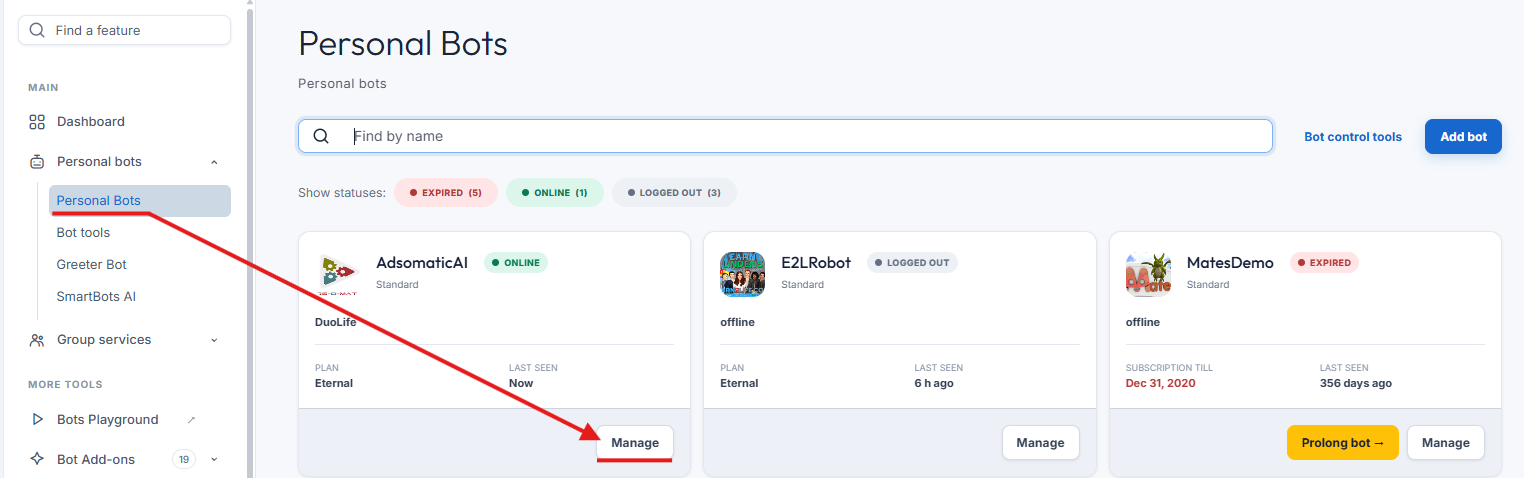
Log in to your SmartBots Account Dashboard.
Select Personal Bots from the left-hand navigation menu.
Find the bot you want and click Manage to open its Control Panel.
Bot Control Panel Overview
The Control Panel is divided into several sections, each providing access to different settings and features.
1. Basic Information
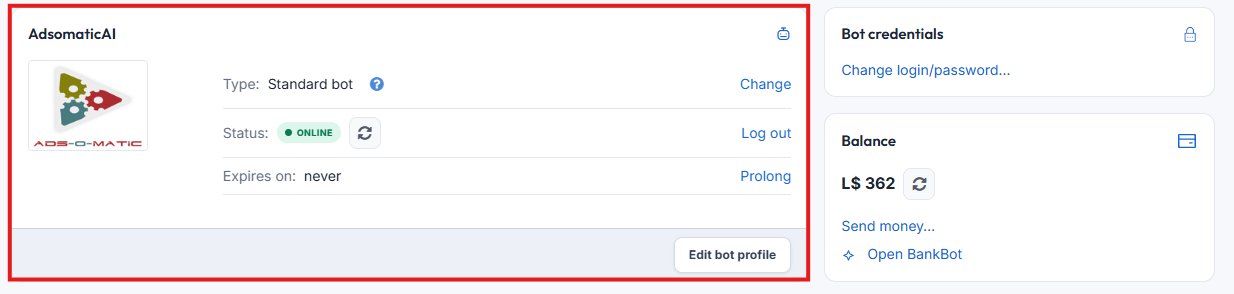
This section displays essential information about your Personal Bot and provides access to the following options:
Bot Status: Check whether your bot is currently online or offline.
Expiration Date: View your bot's remaining service time and extend its subscription.
SL Profile: Edit your bot's Second Life profile information. (More details: Personal Bot Profile)
Bot Type: How to Change Bot Type to suit your needs.
2. Bot Credentials
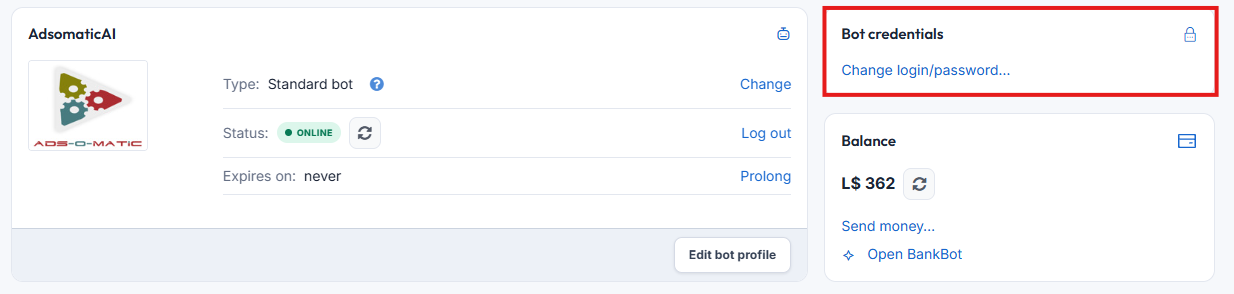
This section allows you to update your bot's Second Life login credentials.
Important: Make sure your bot's credentials are accurate and up to date. Incorrect login information will prevent your bot from connecting to Second Life.
3. Balance
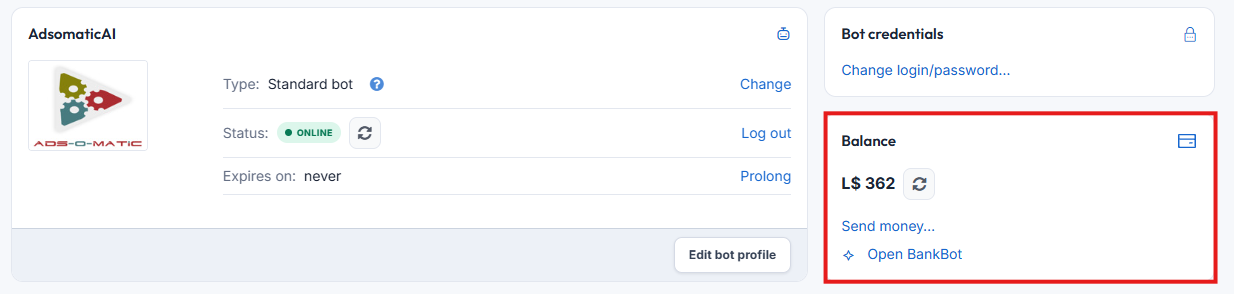
Manage your bot's Linden Dollar (L$) balance and transactions using the following options:
L$ Balance: Displays your bot's current Linden Dollar balance.
Refresh: Updates the displayed balance.
Send Money: Transfer L$ directly from your bot to another Second Life resident.
Bank Bot: Access the Bank Bot Add-On for more advanced financial transactions and automation.
4. Bot location
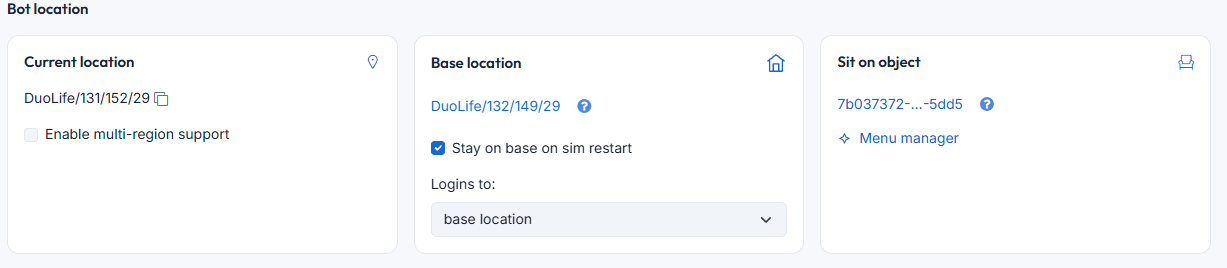
Configure your bot's home location by entering the region name and coordinates.
You can also configure the following settings:
Login Location: Choose whether your bot logs in at its last known location or its base location after reconnecting.
Always Return to Base: When enabled, your bot automatically returns to its configured base location, even if the last location is selected as its login destination.
Multi-Sim Support (Beta): Allows your bot to cross region borders.
Note: Your bot's base location is automatically updated when using the Teleport function through the Personal Bot HUD .
More details: Bot base location
Sit on Object
Configure your bot to sit on a specific object by entering its UUID (Universally Unique Identifier), also known as an Object Key.
For detailed instructions, see the Sit Second Life bot on selected object.
You can also access the Menu Manager add-on for additional interaction options.
5. Messaging and inventory
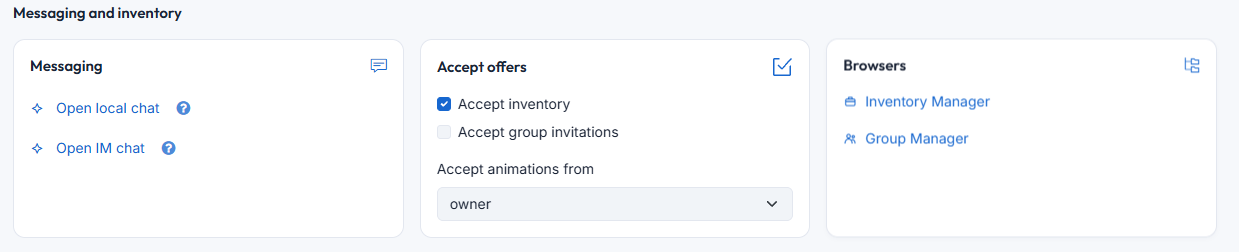
This section provides access to your bot's communication features, inventory management, and group settings.
Messaging
Open Local Chat: Access your bot's local chat features through the Bot Local Chat Add-On.
Open IM Chat: View and manage your bot's instant messages through the Live IM Chat Add-On.
Note: Both messaging features require their respective add-ons to be purchased Add-On Store.
Accept Offers
Control which incoming offers your bot can automatically accept:
Accept Inventory: Allows your bot to accept incoming inventory offers, such as objects, landmarks, and other items.
Accept Group Invitations: Allows your bot to accept incoming Second Life group invitations.
Browsers
Quickly access your bot's inventory and group management tools:
Inventory Manager: Open your bot's Inventory Browser to view and manage its inventory.
Group Manager: Access the Group Manager to manage your bot's group-related settings.
6. Utilities

The Utilities section provides access to advanced tools for developers and users who want additional control over their bots.
Available tools include:
Bots Playground: Access the scripting environment to create and manage custom bot behaviors. More details: Bots Playground
Access Code & API Tokens: Manage the credentials and tokens used to integrate your bot with external applications and services. For more: Bot API token
7. Bot add-ons:
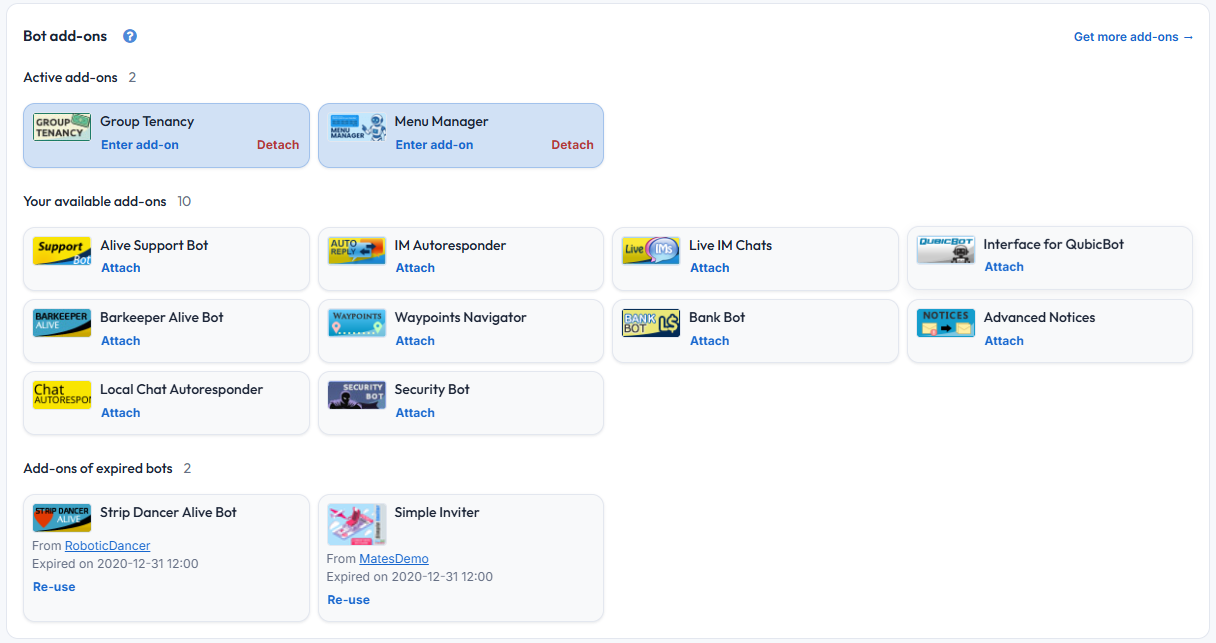
The Bot Add-ons section displays the add-ons currently associated with your Personal Bot and provides options to extend its functionality.
From this section, you can:
View your bot's existing add-ons.
Access and manage installed add-ons.
Browse and attach additional add-ons to your bot.
For more information, see our Bot Add-Ons documentation