CasperVend Configuration
|
m (moved CasperTech Plugin - CasperVend to CasperVend Configuration: Name change)
|
m
|
||
| Line 1: | Line 1: | ||
| - | + | To configure SmartBots group invitations for CasperVend, simply follow the instructions below after you have logged into your CasperVend account. |
|
| + | |||
| + | # To begin configuring your CasperLet products for automatic group invitations, you first need to go to the [https://caspervend.casperdns.com/productsNew.php Products] page. |
||
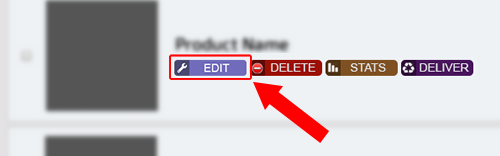
| + | # Press the purple 'edit' button next to one of your products.[[File:CasperTech_Vend_1.png|frame|link=]] |
||
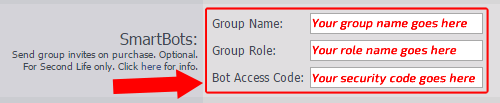
| + | # Scroll down to the SmartBots section. |
||
| + | # Enter your group name into the first field. |
||
| + | # Enter the name (not title) of the role you wish to invite to into the second field. |
||
| + | # Finally, enter your [Security Code|group security code] into the last field. |
||
| + | # Press 'save' and check your vendor.[[File:CasperTech_Vend_2.png|frame|link=]] |
||
| + | |||
| + | [[Category:Existing customers]] |
||
| + | __NOTOC__ |
||
Revision as of 15:39, 23 February 2015
To configure SmartBots group invitations for CasperVend, simply follow the instructions below after you have logged into your CasperVend account.
- To begin configuring your CasperLet products for automatic group invitations, you first need to go to the Products page.
- Press the purple 'edit' button next to one of your products.
- Scroll down to the SmartBots section.
- Enter your group name into the first field.
- Enter the name (not title) of the role you wish to invite to into the second field.
- Finally, enter your [Security Code|group security code] into the last field.
- Press 'save' and check your vendor.