
CasperLet Configuration
|
Lance Swain (Talk | contribs)
(→Bulk Group Invites with Personal Bots)
|
QuincyJohnes (Talk | contribs)
(→Bulk Group Invites with Personal Bots)
|
||
| Line 44: | Line 44: | ||
|} |
|} |
||
| - | + |
[[File:CasperLet PB 1.png|frame|link=]]
|
|
| - | + |
To configure your personal bot for CasperLet visit your [https://let.casperdns.com/groups.php Group Bots] page on CasperLet account and
|
|
| - | + |
click "Add Bot" button:
|
|
| - | # |
+ | |
| - | # In the first field, |
+ | # Select 'SmartBots Personal Bot' from the drop down menu and click 'Next'. |
| - | # In the second field, enter |
+ | # In the first field, you can insert a label for your bot. (This is for your own records in the CasperLet system)
|
| + | # In the second field, enter name of your bot. |
||
# The third field requires your [[Bot Access Code | Bot Access Code ]] |
# The third field requires your [[Bot Access Code | Bot Access Code ]] |
||
| - | # |
+ | # "Default" checkbox is being used if you wish your bot to manage all of your rentals. (Unless provided otherwise in specific unit configurations)
|
| - | # Once you've completed all |
+ | # Once you've completed all steps above, click 'Next'.[[File:CasperLet PB 2.png|frame|link=]] |
| - | # If you wish |
+ | # If you wish the following bot to invite tenants:
|
| - | # If you'd like to allow |
+ |
## Check the box - "Use this personal bot group invites"
|
| - | + |
## Select the group
|
|
| + |
## Insert the role name where you wish your tenants to be invited. |
||
| + | # If you'd like to allow your bot to send rental reminders to customers: check the second box - "use this bot for in-world notices" and click 'Next'. |
||
| + | |||
| + | [[File:CasperLet 5.png|frame|link=]] |
||
| + | |||
| + |
* You can also make a test of invitation/eject to verify if your configuration is provided correctly, afterwards, click "Next".
|
||
---- |
---- |
||
Revision as of 06:10, 26 September 2016
You can use our Group Services and your Personal Bot to invite to your tenant group with CasperLet!.
| Remember: You do not need to rezz an Interface Device if you are only wanting to invite with CasperLet! |
Bulk Group Invites with Group Services
To begin configuring all of your CasperLet rental units for automatic group invitations via SmartBots integration:

- Visit Group Bots page on your CasperLet account.
- Click the "Add Bot" Button.
- If you are using Group Services instead of Personal Bot, select "SmartBots Group Inviter".
- Enter the name of the group exactly as it appears in world and in your SmartBots account.
- Copy your Group Security Code and insert it in "Security Code" of your CasperLet.
- Then, enter an avatar UUID of the SmartBots account owner (you, in other words). This can be found by opening your profile and copying the "Key" field.
- Finally, enter the name of the role you wish your bot to invite your tenants to in your group.
- Checking the box "Default" will make this bot default inviter for ALL of your CasperLet rental boxes.
- It's also possible to enter your custom label. This identifies the bot service for your records in the CasperLet system.
- You can also test the invite and eject commands through CasperLet interface to verify your configuration. If it worked, you'll get a message stating success and an invite in world.

Bulk Group Invites with Personal Bots
Setting up your personal bot to use with CasperLet is similar to Group Services.
| NOTE: Model Personal Bots will not work, as they are not able to manage Groups. You can read more information about the difference here. |

To configure your personal bot for CasperLet visit your Group Bots page on CasperLet account and click "Add Bot" button:
- Select 'SmartBots Personal Bot' from the drop down menu and click 'Next'.
- In the first field, you can insert a label for your bot. (This is for your own records in the CasperLet system)
- In the second field, enter name of your bot.
- The third field requires your Bot Access Code
- "Default" checkbox is being used if you wish your bot to manage all of your rentals. (Unless provided otherwise in specific unit configurations)
- Once you've completed all steps above, click 'Next'.
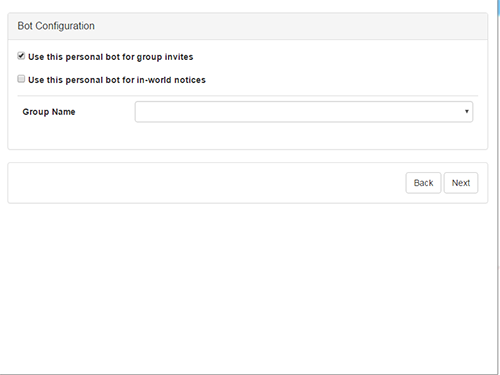
- If you wish the following bot to invite tenants:
- Check the box - "Use this personal bot group invites"
- Select the group
- Insert the role name where you wish your tenants to be invited.
- If you'd like to allow your bot to send rental reminders to customers: check the second box - "use this bot for in-world notices" and click 'Next'.


- You can also make a test of invitation/eject to verify if your configuration is provided correctly, afterwards, click "Next".