
CasperLet Configuration
You can use our Group Services and your Personal Bot to invite to your tenant group with CasperLet!.
| Remember: You do not need to rezz an Interface Device if you are only wanting to invite with CasperLet! |
Bulk Group Invites with Group Services
To begin configuring all of your CasperLet rental units for automatic group invitations via SmartBots integration:

- Visit Group Bots page on your CasperLet account.
- Click the "Add Bot" Button.
- If you are using Group Services instead of Personal Bot, select "SmartBots Group Inviter".
- Enter the name of the group exactly as it appears in world and in your SmartBots account.
- Copy your Group Security Code and insert it in "Security Code" of your CasperLet.
- Then, enter an avatar UUID of the SmartBots account owner (you, in other words). This can be found by opening your profile and copying the "Key" field.
- Finally, enter the name of the role you wish your bot to invite your tenants to in your group.
- Checking the box "Default" will make this bot default inviter for ALL of your CasperLet rental boxes.
- It's also possible to enter your custom label. This identifies the bot service for your records in the CasperLet system.
- You can also test the invite and eject commands through CasperLet interface to verify your configuration. If it worked, you'll get a message stating success and an invite in world.

Bulk Group Invites with Personal Bots
Setting up your personal bot to use with CasperLet is similar to Group Services.
| NOTE: Model Personal Bots will not work, as they are not able to manage Groups. You can read more information about the difference here. |
To configure your personal bot for CasperLet:
- Visit the Group Bots page on your CasperLet account.
- Click the Add Bot button
- In the new window, select 'SmartBots Personal Bot' from the drop down menu and click 'Next'
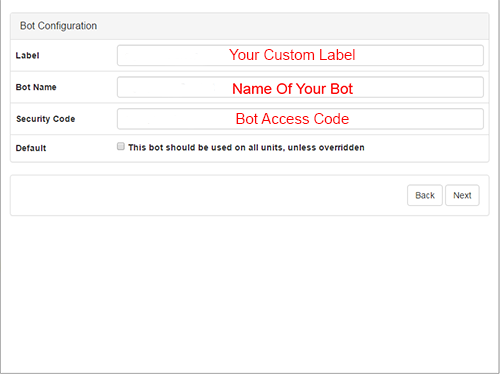
- In the first field, enter your desired label to title this bot. This is for your own records in the CasperLet system.
- In the second field, enter the name of your bot.
- The third field requires your Bot Access Code
- The Default box is if you wish your bot to be the default bot for ALL your units, unless stated otherwise on the specific units configuration page.
- Once you've completed all of these steps, click 'Next'.


- If you wish to use this bot to invite tenants to a group, check the box and select the group from the drop down menu that appears, and then select the desired role to invite tenants to in the second drop down menu that appears below the Group selection.
- If you'd like to allow this bot to send rental reminders to customers, check the second box as well, then click 'Next'.

- Next, test your bot to ensure that it is configured correctly. Once you're done testing and everything is working, click 'Next' and that's it! You're done!