
Setting up barkeeper messages
| Line 8: | Line 8: | ||
<div class=blocksMenuAutoBlock> |
<div class=blocksMenuAutoBlock> |
||
| - | Alive Barkeeper is configured using IM messages. To start configuring |
+ | Alive Barkeeper is configured using IM messages. To start configuring Barkeeper, touch him: |
[[Image:Barkeeper configure 1.jpg|link=|center|border]] |
[[Image:Barkeeper configure 1.jpg|link=|center|border]] |
||
| - | + |
After typing in "SB-BARKEEPER help" you will then receive a list of commands you can use to access the different menus available (shown in the next tab). |
|
</div> |
</div> |
||
| Line 20: | Line 20: | ||
[[File:BarConfig1.png|link=|center|border]] |
[[File:BarConfig1.png|link=|center|border]] |
||
| - | *SB-BARKEEPER set is explained below. It is used to change the default messages that the bot sends. To view a list of the messages please see the next tab and to get a description scroll down. |
+ | *SB-BARKEEPER set is explained below. It is used to change the default messages that the bot sends. To view a list of the messages please see the next tab and to get a description of them scroll down. |
*SB-BARKEEPER reset changes back all options to default. |
*SB-BARKEEPER reset changes back all options to default. |
||
| Line 32: | Line 32: | ||
[[Image:BarConfig2.png|link=|center|border]] |
[[Image:BarConfig2.png|link=|center|border]] |
||
| + | Please see below for a description of what each message does. |
||
</div> |
</div> |
||
| Line 50: | Line 51: | ||
{{Generic table end}} |
{{Generic table end}} |
||
| - | + | To change a message type "SB-BARKEEPER set message= your message here". Replace "your message here" with what you want the bot to send. For eg changing the hello message: |
|
| - | + | ||
| - | To change a message type "SB-BARKEEPER set message= your message here" |
+ | |
SB-BARKEEPER set hello= Hello Nice to meet you! |
SB-BARKEEPER set hello= Hello Nice to meet you! |
||
| Line 60: | Line 59: | ||
== Additional Commands == |
== Additional Commands == |
||
| - | === |
+ | === Disabling the Invitation Message === |
Barkeeper automatically invites nearby avatars to buy a drink by sending an "invitation" message. You can change this message or completely disable automatic invitation by setting the message to empty: |
Barkeeper automatically invites nearby avatars to buy a drink by sending an "invitation" message. You can change this message or completely disable automatic invitation by setting the message to empty: |
||
Revision as of 19:25, 1 November 2012
The tabs below shows how to access the various BARKEEPER menus:
- 1. Initiating Configuration
- 2. Available Options
- 3. Viewing Default Messages
Alive Barkeeper is configured using IM messages. To start configuring Barkeeper, touch him:

After typing in "SB-BARKEEPER help" you will then receive a list of commands you can use to access the different menus available (shown in the next tab).
Typing "SB-BARKEEPER help" will provide you with a list of options which can be changed:
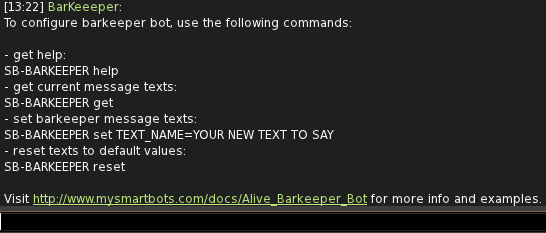
- SB-BARKEEPER set is explained below. It is used to change the default messages that the bot sends. To view a list of the messages please see the next tab and to get a description of them scroll down.
- SB-BARKEEPER reset changes back all options to default.
Typing "SB-BARKEEPER get" will provide you with a list of the current available messages, their current settings and instructions on how to change them:
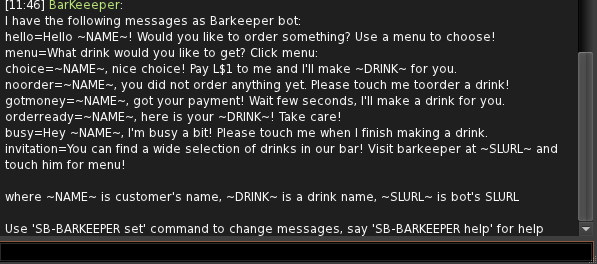
Please see below for a description of what each message does.
BARKEEPER Messages
Below is a table of the available messages and a description what they do:
To change a message type "SB-BARKEEPER set message= your message here". Replace "your message here" with what you want the bot to send. For eg changing the hello message:
SB-BARKEEPER set hello= Hello Nice to meet you!
Barkeeper will then provide a confirmation message saying that the option has been changed.
Additional Commands
Disabling the Invitation Message
Barkeeper automatically invites nearby avatars to buy a drink by sending an "invitation" message. You can change this message or completely disable automatic invitation by setting the message to empty:
"SB-BARKEEPER set invitation="
Changing the Invitation Message Timer
The invite message is sent continuously as long as the bot is logged in or it the invitation message is not disabled.
To change how often the message gets sent out type "SB-BARKEEPER set shout_interval=minutes-minutes". For eg:
SB-BARKEEPER set shout_interval=10-15
<<Go Back to Alive Barkeeper