
Alive Strip Dancer Configuration
|
(Created page with "Alive Strip Dancer can be configured easily by accessing the module page from your account dashboard: border <div class=blocksMenuAuto> *Gener...")
|
|||
| Line 17: | Line 17: | ||
[[Image:STRIP1.png|link=|center|border]] |
[[Image:STRIP1.png|link=|center|border]] |
||
| + | The module will allow the bot to read the folder structure on login so you can log-out the bot, setup a folder, and then log it back in. |
||
</div> |
</div> |
||
| Line 28: | Line 29: | ||
Although not necessary it is recommended you setup the folder(s) first before attaching the module. |
Although not necessary it is recommended you setup the folder(s) first before attaching the module. |
||
| + | |||
| + | '''''The main folder MUST be created in the root of the bots inventory''''' |
||
</div> |
</div> |
||

Revision as of 05:35, 31 August 2014
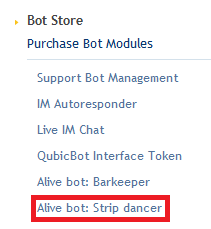
Alive Strip Dancer can be configured easily by accessing the module page from your account dashboard:
- General Settings
- Folder Setup
- Interaction Messages
- Other Messages
The first section allows you to choose the folder which you want the bot to wear (it will wear all levels by default). For instructions on how to setup the folder see the "FOLDER SETUP" tab for more details.
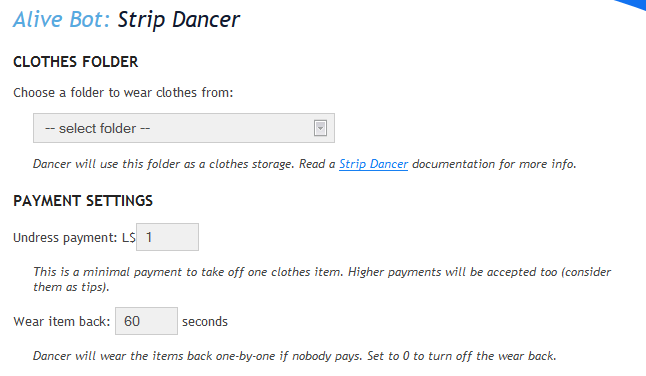
The module will allow the bot to read the folder structure on login so you can log-out the bot, setup a folder, and then log it back in.
To setup the folder for the bot to wear you can create up to 9 levels. The first level which is 0 indicates the "nude" level or items which will not be taken off.
When a customer pays the bot the items in the highest number folder gets removed until it reaches the "0" folder. You can see an example folder structure here:
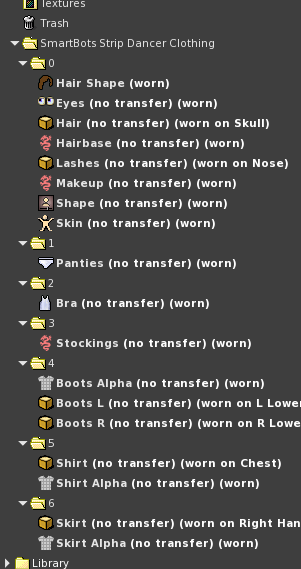
Although not necessary it is recommended you setup the folder(s) first before attaching the module.
The main folder MUST be created in the root of the bots inventory
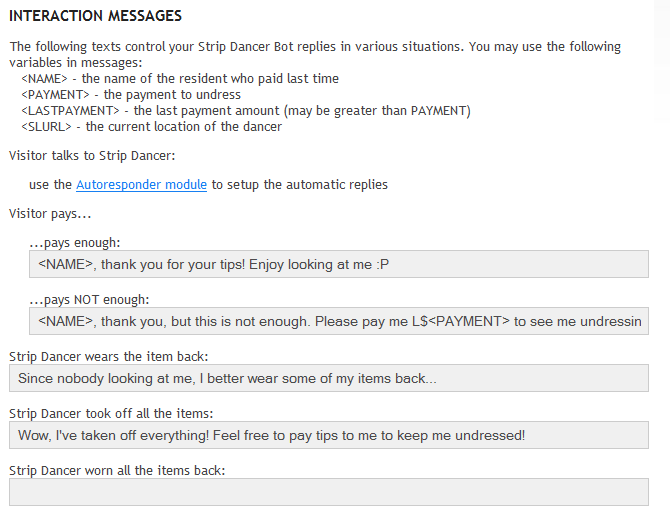
Here you can change how the bot responds to certain situations
The other messages section allows you to configure the invitation message which the bot says in local chat as well as the frequency:
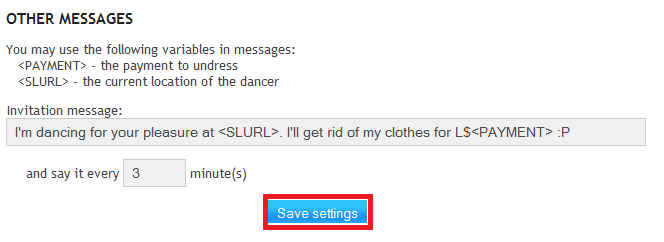
You must configure the bot atleast once by clicking save for the default messages to be applied