
How to Remove a group
|
(Created page with "When you no longer need a group you can remove it from your account. The following instructions shows how to do that: #Login to your smartbots account and look for the group yo...")
|
m
|
||
| (One intermediate revision not shown) | |||
| Line 4: | Line 4: | ||
#Login to your smartbots account and look for the group you want to remove. |
#Login to your smartbots account and look for the group you want to remove. |
||
| - | # |
+ | #Hover over the number of members.
|
| + |
#Click 'group settings'[[Image:RemoveGroup.png|link=|center|border]] |
||
#Select the "Remove Group" tag:[[Image:RemoveGroup1.png|link=|center|border|500px]] |
#Select the "Remove Group" tag:[[Image:RemoveGroup1.png|link=|center|border|500px]] |
||
#Click the link that is shown |
#Click the link that is shown |
||
| Line 12: | Line 13: | ||
'''''This only removes a group from your account dashboard, everything stays the same inworld.''''' |
'''''This only removes a group from your account dashboard, everything stays the same inworld.''''' |
||
| + | |||
| + | [[Category:Existing customers]] |
||
Latest revision as of 21:01, 18 February 2015
When you no longer need a group you can remove it from your account.
The following instructions shows how to do that:
- Login to your smartbots account and look for the group you want to remove.
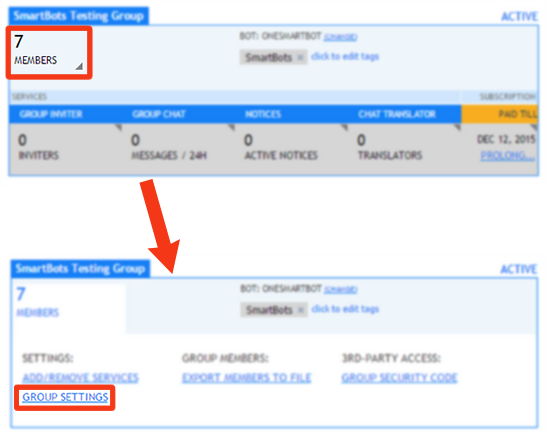
- Hover over the number of members.
- Click 'group settings'
- Select the "Remove Group" tag:
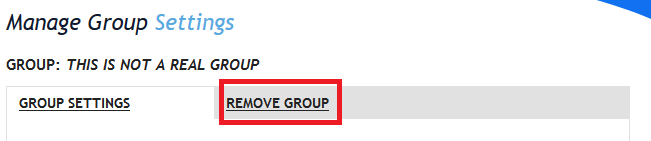
- Click the link that is shown
- Confirm you want to remove the group
The group has now been removed from your account dashboard and can no longer be controlled with smartbots unless you re-add it.
This only removes a group from your account dashboard, everything stays the same inworld.