
Alive Strip Dancer Configuration
|
|
|||
| (3 intermediate revisions not shown) | |||
| Line 3: | Line 3: | ||
# Determine the clothes inventory items bot will undress. |
# Determine the clothes inventory items bot will undress. |
||
# Setup bot messages and payment amount. |
# Setup bot messages and payment amount. |
||
| + | |||
| + | '''''You must configure the bot at least once by clicking save for the default messages to be applied''''' |
||
== 1. Setting up your Strip Dancer appearance == |
== 1. Setting up your Strip Dancer appearance == |
||
| Line 17: | Line 19: | ||
== 2. Setting up Strip Dancer's messages == |
== 2. Setting up Strip Dancer's messages == |
||
| - | Alive Strip Dancer can be configured easily by accessing the |
+ | Alive Strip Dancer can be configured easily by accessing the add-on page from your account dashboard: |
[[Image:STRIP0.png|link=|center|border]] |
[[Image:STRIP0.png|link=|center|border]] |
||
| - | === a) Select clothes folder === |
+ | === a) Select the clothes folder === |
| - | The first section allows you to choose the folder |
+ | The first section allows you to choose the folder with dancer's clothes. For instructions on how to setup the folder see the [[Alive Strip Dancer Appearance]] page. |
[[Image:STRIP1.png|link=|center|border|500px]] |
[[Image:STRIP1.png|link=|center|border|500px]] |
||
| - | |||
| - | |||
=== b) Dancer messages === |
=== b) Dancer messages === |
||
| - | You can change how the bot responds to certain situations |
+ | You can change how the bot responds to certain situations: |
[[Image:STRIP2.png|link=|center|border|500px]] |
[[Image:STRIP2.png|link=|center|border|500px]] |
||
| - | === c) Other |
+ | === c) Other messages === |
| - | The |
+ | |
| + | The section allows you to configure the bot's invitation message. Bot sends this message regularly to attract visitors. |
||
[[Image:STRIP3.png|link=|center|border|500px]] |
[[Image:STRIP3.png|link=|center|border|500px]] |
||
| - | '''''You must configure the bot |
+ | '''''You must configure the bot at least once by clicking save for the default messages to be applied''''' |
[[Alive Strip Dancer Bot| <<Back to Alive Strip Dancer Bot]] |
[[Alive Strip Dancer Bot| <<Back to Alive Strip Dancer Bot]] |
||
| Line 45: | Line 46: | ||
__NOTOC__ |
__NOTOC__ |
||
[[Category: Personal bots]] |
[[Category: Personal bots]] |
||
| - | [[Category: Bot |
+ | [[Category: Bot add-ons configuration]] |
Latest revision as of 07:15, 23 June 2017
Alive Strip Dancer bot configuration consists of two stages:
- Determine the clothes inventory items bot will undress.
- Setup bot messages and payment amount.
You must configure the bot at least once by clicking save for the default messages to be applied
1. Setting up your Strip Dancer appearance
The Strip Dancer appearance is being configured in regular SL viewer.
- Logout your bot from SmartBots
- Login bot using SL viewer (native, Firestorm or any other)
- Setup the clothes folders
- Close the viewer and login bot back to SmartBots
Visit Alive Strip Dancer Appearance page for details.
2. Setting up Strip Dancer's messages
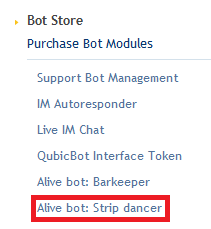
Alive Strip Dancer can be configured easily by accessing the add-on page from your account dashboard:
a) Select the clothes folder
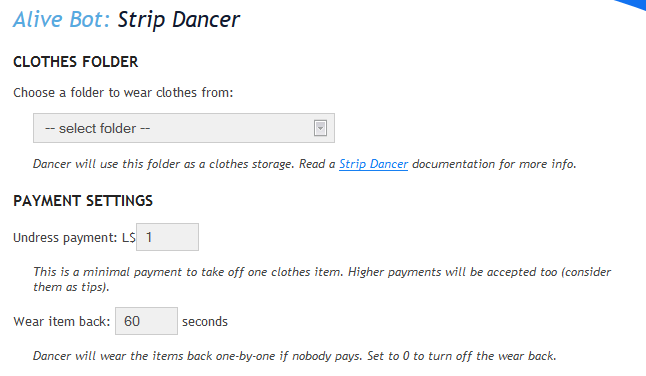
The first section allows you to choose the folder with dancer's clothes. For instructions on how to setup the folder see the Alive Strip Dancer Appearance page.
b) Dancer messages
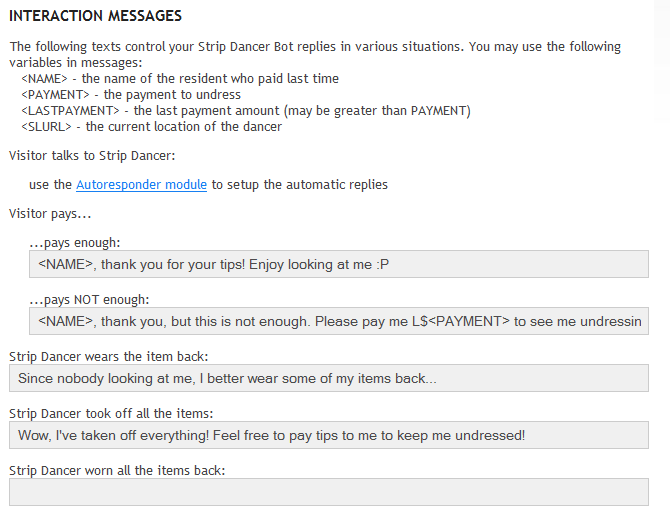
You can change how the bot responds to certain situations:
c) Other messages
The section allows you to configure the bot's invitation message. Bot sends this message regularly to attract visitors.
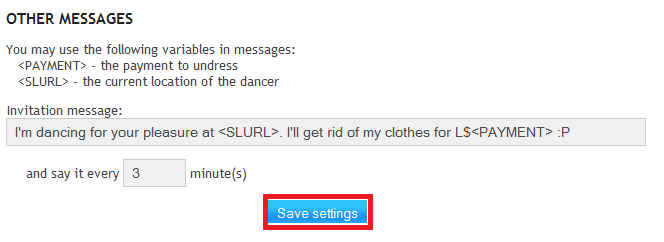
You must configure the bot at least once by clicking save for the default messages to be applied