
Purchasing Add-Ons
|
QuincyJohnes (Talk | contribs)
(Undo revision 4372 by Rehnaeaislinn (talk))
|
QuincyJohnes (Talk | contribs)
|
||
| (One intermediate revision not shown) | |||
| Line 9: | Line 9: | ||
The following images demonstrate the process of Add-On installation: |
The following images demonstrate the process of Add-On installation: |
||
| - | + | 1. Open SmartBots [http://mysmartbots.com/store/ Add-on Store]
|
|
| - | + | [[Image:Bot_store.png|center|link=|border]] |
|
| - | + | ||
| - | + | ||
| - | + | 2. Locate the add-on you need and click buy/get button |
|
| - | + | [[Image:Buy_add-on.png|center|link=|border]] |
|
| - | + | ||
| - | + | 3. Confirm your purchase and pay using your [[Wallet]] |
|
| - | + | [[Image:Buy_add-on.png|center|link=|border]] |
|
| - | + | ||
| - | + | 4. Choose your bot in the list
|
|
| - | + | [[Image:Choose_add-on.png|center|link=|border]] |
|
| - | + |
That's it! You can open the add-on control page from your account. |
|
| - | + | ||
| - | + | ||
For general information on Add-Ons [[Bot Modules|click here]]. |
For general information on Add-Ons [[Bot Modules|click here]]. |
||
| Line 33: | Line 27: | ||
[[Category: Personal bots]] |
[[Category: Personal bots]] |
||
[[Category: Bot add-ons]] |
[[Category: Bot add-ons]] |
||
| + | |||
| + | __NOTOC__ |
||
Latest revision as of 14:26, 30 March 2018
The overall process of purchasing an Add-On is as follows:
- Enter Bot Store
- Purchase the add-on
- Attach add-on to your bot
Detailed instructions
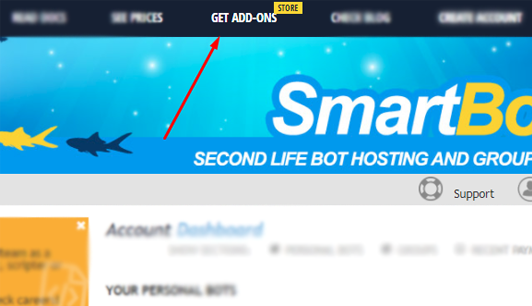
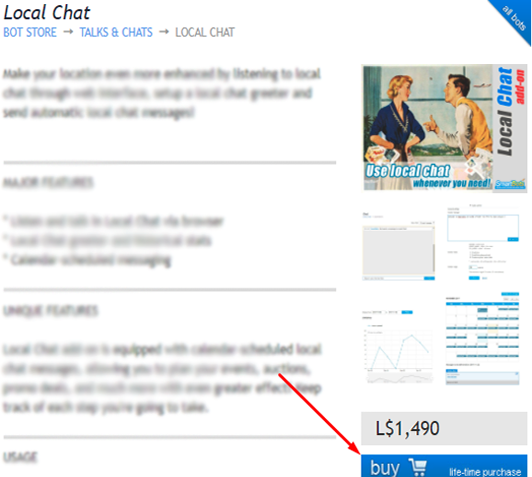
The following images demonstrate the process of Add-On installation:
1. Open SmartBots Add-on Store
2. Locate the add-on you need and click buy/get button
3. Confirm your purchase and pay using your Wallet
4. Choose your bot in the list
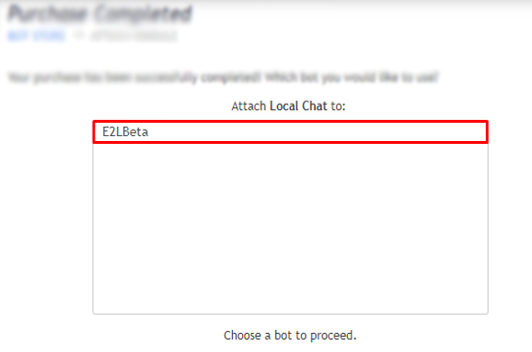
That's it! You can open the add-on control page from your account.
For general information on Add-Ons click here.