
Setting up barkeeper messages
|
QuincyJohnes (Talk | contribs)
|
|||
| (21 intermediate revisions not shown) | |||
| Line 1: | Line 1: | ||
| - | Alive Barkeeper |
+ |
'''Alive Barkeeper''' add-on comes with set of pre-defined messages that it can send throughout it's bar-tending process. Read below how to change/customize these messages. |
| - | + |
To find the message configuration page: |
|
| + |
# Visit your '''Alive Barkeeper add-on page'''
|
||
| + | # Click your '''Personal Bot's name''' (left-side menu) |
||
| + | # Click '''setup greeting messages''' option |
||
| - | == |
+ | == Setting up Messages == |
| - | + |
Here you can configure the various interaction messages that occur at different events: |
|
| - | + | ||
| - | + | ||
| + | [[Image:Barkeeper message page.png|link=|center|border|550px]] |
||
| - | + |
* '''Visitor has touched the Barkeeper''' - This message is sent out when visitor clicks on barkeeper
|
|
| + | * '''Visitor has made a choice''' - When visitor selects a drink in the dialog menu |
||
| + |
* '''Visitor has paid''' - these two messages are sent in 2 different situations. When visitor has paid enough for a drink price, or not enough.
|
||
| + | * '''The drink is ready''' - This message is sent to visitor when barkeeper finishes up the drink |
||
| + | * '''Visitor touches while making a drink''' - This message is sent if barkeeper is touched while making a drink for another visitor. |
||
| + | * '''Visitor pays without selecting a drink''' - This message is sent when visitor pays, but doesn't select a drink in the menu. |
||
| + | * '''Barkeeper invitation''' - This is the message that barkeeper keeps repeating. |
||
| + | ** '''Say it every''' - Defines a period (in minutes) of '''Barkeeper invitation''' message |
||
| - | + | === Message variables === |
|
| - | + |
In each message, you can also includes message variables. Each variable converts into different values when message is sent.
|
|
| - | + |
# '''<NAME>''' - Name of the visitor.
|
|
| - | + | # '''<PRICE>''' - the drink price you set |
|
| - | + | # '''<SLURL>''' - the current location of the bot |
|
| - | + | # '''<DRINK>''' - the current drink name |
|
| - | + | ||
| - | + | ||
| - | + | ||
| - | + | ||
| - | + | ||
| - | + | ||
| - | + | [[Alive_Barkeeper_Bot|<<Go Back to Alive Barkeeper]] |
|
| + | __NOTOC__ |
||
| - | + |
[[Category:Bot add-ons configuration]]
|
|
| - | + | ||
| - | + | ||
| - | + | ||
| - | + | ||
| - | + | ||
| - | + | ||
| - | + | ||
| - | + | ||
| - | + | ||
| - | + | ||
| - | + | ||
Latest revision as of 22:26, 31 May 2019
Alive Barkeeper add-on comes with set of pre-defined messages that it can send throughout it's bar-tending process. Read below how to change/customize these messages.
To find the message configuration page:
- Visit your Alive Barkeeper add-on page
- Click your Personal Bot's name (left-side menu)
- Click setup greeting messages option
Setting up Messages
Here you can configure the various interaction messages that occur at different events:
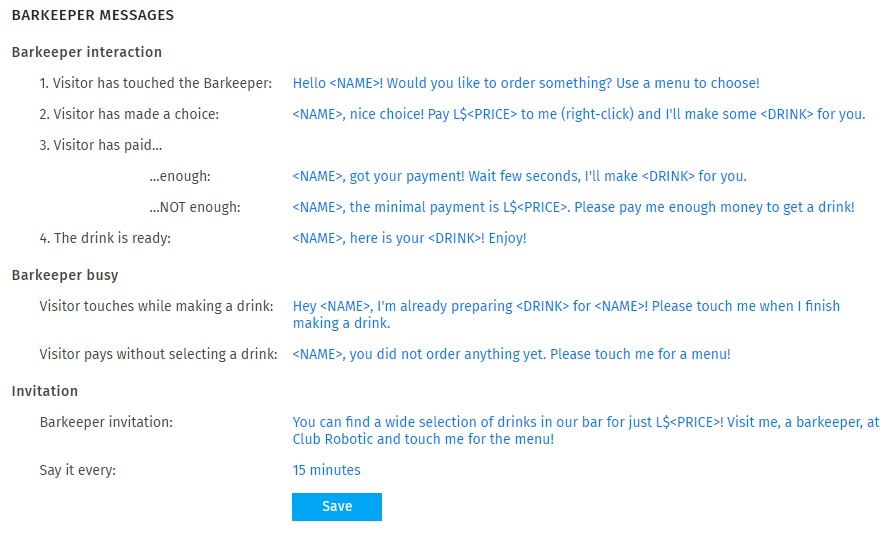
- Visitor has touched the Barkeeper - This message is sent out when visitor clicks on barkeeper
- Visitor has made a choice - When visitor selects a drink in the dialog menu
- Visitor has paid - these two messages are sent in 2 different situations. When visitor has paid enough for a drink price, or not enough.
- The drink is ready - This message is sent to visitor when barkeeper finishes up the drink
- Visitor touches while making a drink - This message is sent if barkeeper is touched while making a drink for another visitor.
- Visitor pays without selecting a drink - This message is sent when visitor pays, but doesn't select a drink in the menu.
- Barkeeper invitation - This is the message that barkeeper keeps repeating.
- Say it every - Defines a period (in minutes) of Barkeeper invitation message
Message variables
In each message, you can also includes message variables. Each variable converts into different values when message is sent.
- <NAME> - Name of the visitor.
- <PRICE> - the drink price you set
- <SLURL> - the current location of the bot
- <DRINK> - the current drink name
<<Go Back to Alive Barkeeper