
Setting up barkeeper messages
| Line 1: | Line 1: | ||
| - | + | <div class=blocksMenuAuto> |
|
| + |
* 1. Initiating Configuration
|
||
| + | * 2. Available Options |
||
| + | * 3. Viewing Default Messages |
||
| + | </div> |
||
| + | <div class=blocksMenuAutoBlock> |
||
| + | Alive Barkeeper is configured using IM messages. To start configuring your barkeeper, touch him: |
||
[[Image:Barkeeper configure 1.jpg|link=|center|border]] |
[[Image:Barkeeper configure 1.jpg|link=|center|border]] |
||
| - | + | and then you will receive a list of options which you can choose |
|
| + | </div> |
||
| + | |||
| + | <div class=blocksMenuAutoBlock> |
||
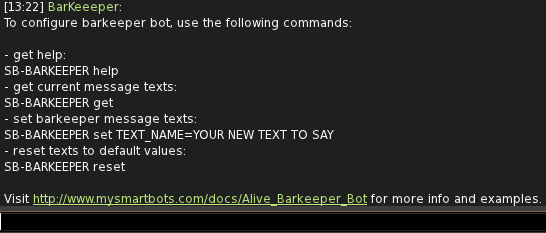
Once you type "SB-BARKEEPER help" you will see a list of options: |
Once you type "SB-BARKEEPER help" you will see a list of options: |
||
[[File:BarConfig1.png|link=|center|border]] |
[[File:BarConfig1.png|link=|center|border]] |
||
| + | </div> |
||
| + | |||
| + | <div class=blocksMenuAutoBlock> |
||
| + | |||
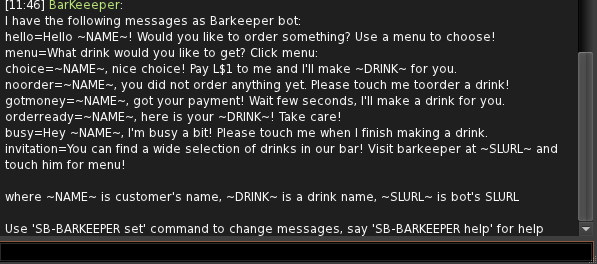
| + | Typing "SB-BARKEEPER get" will provide you with a list of the current available messages, their current settings and instructions on how to change them: |
||
| + | [[Image:BarConfig2.png|link=|center|border]] |
||
| - | + | </div> |
|
| - | + |
== BARKEEPER Messages ==
|
|
| - | Below is a table of the available messages and what they do: |
+ | Below is a table of the available messages and a description what they do: |
{{Generic 2-table start|Command|Description}} |
{{Generic 2-table start|Command|Description}} |
||
| Line 29: | Line 44: | ||
Any of the above messages can be disabled by leaving it blank. |
Any of the above messages can be disabled by leaving it blank. |
||
| - | To change a message type "SB-BARKEEPER set message=your message here" change message to the one you want to change and replace your message here with your message. For eg changing the hello message: |
+ | To change a message type "SB-BARKEEPER set message= your message here" change message to the one you want to change and replace your message here with your message. For eg changing the hello message: |
SB-BARKEEPER set hello= Hello Nice to meet you! |
SB-BARKEEPER set hello= Hello Nice to meet you! |
||
Revision as of 19:02, 1 November 2012
- 1. Initiating Configuration
- 2. Available Options
- 3. Viewing Default Messages
Alive Barkeeper is configured using IM messages. To start configuring your barkeeper, touch him:

and then you will receive a list of options which you can choose
Once you type "SB-BARKEEPER help" you will see a list of options:
Typing "SB-BARKEEPER get" will provide you with a list of the current available messages, their current settings and instructions on how to change them:
BARKEEPER Messages
Below is a table of the available messages and a description what they do:
Any of the above messages can be disabled by leaving it blank.
To change a message type "SB-BARKEEPER set message= your message here" change message to the one you want to change and replace your message here with your message. For eg changing the hello message:
SB-BARKEEPER set hello= Hello Nice to meet you!
Barkeeper will then provide a confirmation message saying that the option has been changed.
Automatic invitation
Barkeeper automatically invites nearby avatars to buy a drink by sending an "invitation" message. You can change this message or completely disable automatic invitation by setting the message to empty:
SB-BARKEEPER set invitation=