
Setting up barkeeper messages
| Line 1: | Line 1: | ||
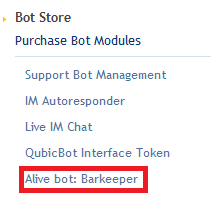
| - | You can configure your Barkeeper bot using a configuration page in your account dashboard. To access the configuration page click "Alive bot: Barkeeper" on the left |
+ | You can configure your Barkeeper bot using a configuration page in your account dashboard. To access the configuration page click "Alive bot: Barkeeper" on the left panel in your account dashboard |
[[Image:BAKPR1.png|link=|center|border]] |
[[Image:BAKPR1.png|link=|center|border]] |
||
| - | '''''This |
+ | '''''This add-on requires you have [[SBSL]] enabled''''' |
== Interaction Messages == |
== Interaction Messages == |
||
| Line 14: | Line 14: | ||
== Other Messages == |
== Other Messages == |
||
| - | There are also messages that may occur while someone |
+ | There are also messages that may occur while someone isn't interacting with the bot or two persons try to use it at the same time: |
[[Image:BAKPR3.png|link=|center|border|600px]] |
[[Image:BAKPR3.png|link=|center|border|600px]] |
||
| Line 20: | Line 20: | ||
Invitation message is sent at the specified interval in local chat. |
Invitation message is sent at the specified interval in local chat. |
||
| - | '''''You must save the settings after enabling the |
+ | '''''You must save the settings after enabling the add-on or the messages will not be sent!''''' |
=== Seeing this image? === |
=== Seeing this image? === |
||
[[Image:Barkeeper Empty Config.png|link=|center]] |
[[Image:Barkeeper Empty Config.png|link=|center]] |
||
| - | This means that you have either applied the |
+ | This means that you have either applied the add-on to a bot that was previously expired or are running the add-on through QubicBot. Just click 'Save settings' in the red box to reset all of the settings to default and see your bot begin working again. |
[[Alive_Barkeeper_Bot|<<Go Back to Alive Barkeeper]] |
[[Alive_Barkeeper_Bot|<<Go Back to Alive Barkeeper]] |
||
__NOTOC__ |
__NOTOC__ |
||
| - | [[Category:Bot |
+ | [[Category:Bot add-ons configuration]] |
Revision as of 03:12, 22 June 2017
You can configure your Barkeeper bot using a configuration page in your account dashboard. To access the configuration page click "Alive bot: Barkeeper" on the left panel in your account dashboard
This add-on requires you have SBSL enabled
Interaction Messages
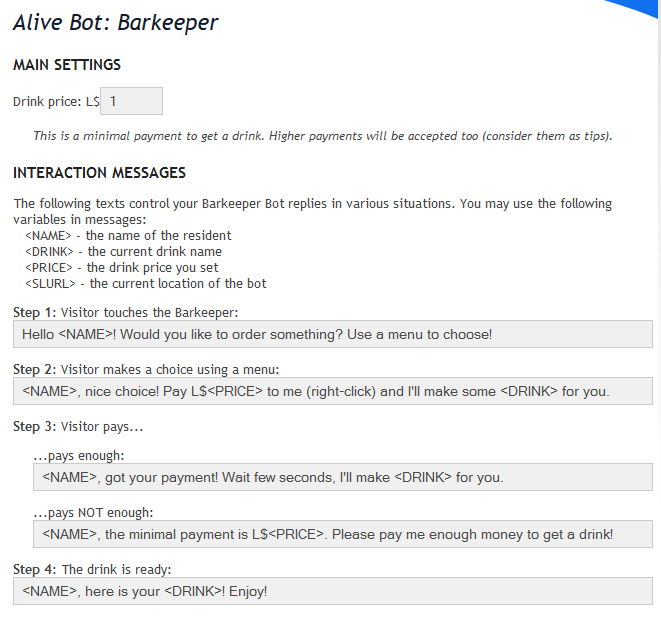
Here you can configure the various interaction messages that occur at different events:
Other Messages
There are also messages that may occur while someone isn't interacting with the bot or two persons try to use it at the same time:
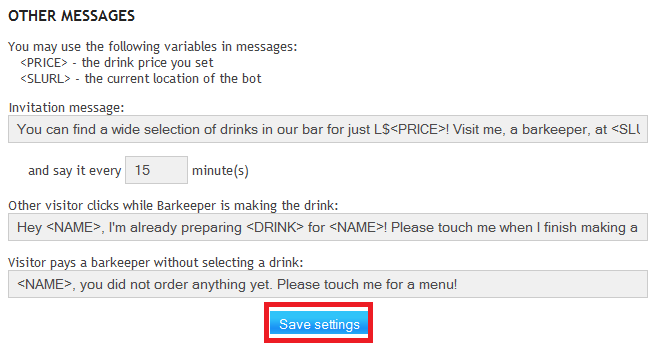
Invitation message is sent at the specified interval in local chat.
You must save the settings after enabling the add-on or the messages will not be sent!
Seeing this image?
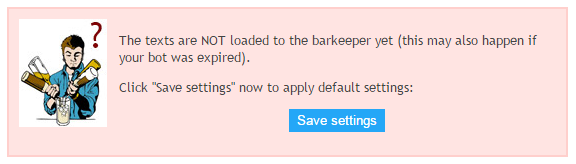
This means that you have either applied the add-on to a bot that was previously expired or are running the add-on through QubicBot. Just click 'Save settings' in the red box to reset all of the settings to default and see your bot begin working again.
<<Go Back to Alive Barkeeper