
Purchasing Add-Ons
| Line 23: | Line 23: | ||
|- |
|- |
||
| - | | 4. After purchasing, open your bot control panel. Open modules list and attach Module to your bot |
+ | | 4. After purchasing, open your [[Personal Bot Control Panel|bot control panel]]. |
| + | |||
| + | Open modules list and attach Module to your bot |
||
| [[Image:Attaching-bot-addon.png|link=|210px]] |
| [[Image:Attaching-bot-addon.png|link=|210px]] |
||
|} |
|} |
||
Revision as of 13:55, 24 November 2016
The overall process of purchasing a Module is as follows:
- Enter Bot Store
- Purchase the module
- Attach module to your bot
Detailed instructions
The following images demonstrate the process of Module installation:
| 1. Open SmartBots Bot Store | 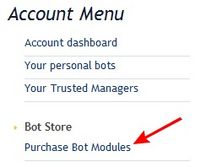
|
| 2. Locate the module you need and click buy/get button | 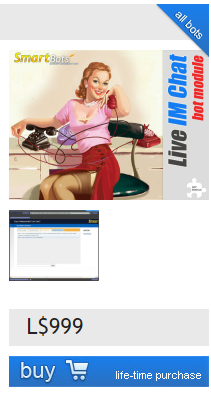
|
| 3. Confirm your purchase and pay for the module using your Wallet | 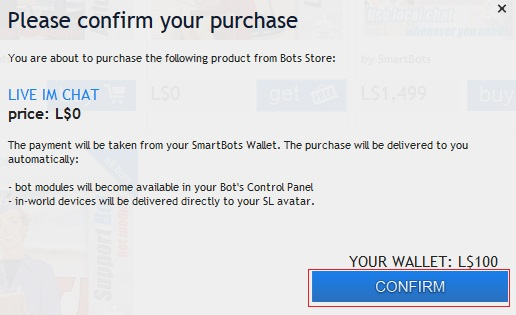
|
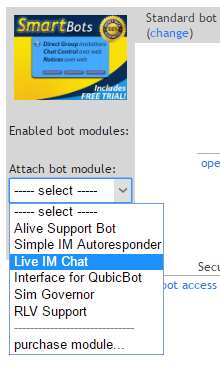
| 4. After purchasing, open your bot control panel.
Open modules list and attach Module to your bot |
|
For general information on Modules click here.