
How to Add a group
| Line 8: | Line 8: | ||
# The first step after you have created an account is to go to your account dashboard, (you should be taken there automatically after logging in if not [http://www.mysmartbots.com/process/customer.html?action=stats click here.] |
# The first step after you have created an account is to go to your account dashboard, (you should be taken there automatically after logging in if not [http://www.mysmartbots.com/process/customer.html?action=stats click here.] |
||
| - | # If your account is new you will be |
+ | # If your account is new you will be prompted with an Account Wizard. You can close this wizard if you wish and follow these steps to add a group or [[How_To_Register_Personal_Bot|these steps]] for how to add a [[Personal Bots|Personal Bot]]. |
# At the top of your account dashboard there will be 3 check boxes, please ensure that all 3 are checked and refresh the page: [[Image:AddGroup1.png|center|border|link=|500px]] |
# At the top of your account dashboard there will be 3 check boxes, please ensure that all 3 are checked and refresh the page: [[Image:AddGroup1.png|center|border|link=|500px]] |
||
# On your account dashboard locate the link that says "Add a new group to manage": [[Image:AddGroup2.png|center|border|link=|500px]] |
# On your account dashboard locate the link that says "Add a new group to manage": [[Image:AddGroup2.png|center|border|link=|500px]] |
||
| Line 68: | Line 68: | ||
=== Abilities === |
=== Abilities === |
||
| - | The abilities needed for the bot to perform optimally differ with each service, it is recommended that you place the bot in an officer role as it contains |
+ | The abilities needed for the bot to perform optimally differ with each service, it is recommended that you place the bot in an officer role as it contains most of the abilities the bot will need assuming it hasnt been changed. |
A list is provided below: |
A list is provided below: |
||
| - | # Group Inviter - Invite |
+ | # Group Inviter - Invite, Assign members to Assigners role (if inviting to a custom role)
|
| - | # Group Chat Management - Join Group Chat, Moderate Group Chat |
+ | # Group Chat Management - Join Group Chat, Moderate Group Chat, Eject from group
|
# Group Notices - Send notices |
# Group Notices - Send notices |
||
Revision as of 21:18, 29 December 2012
The following shows you step-by-step instructions on how to list a group with smartbots.
Benefits
To use any of the features provided by smartbots, you must first create an account. You must then add a group to use these features (except for Personal Bots).
How to Add a group
- The first step after you have created an account is to go to your account dashboard, (you should be taken there automatically after logging in if not click here.
- If your account is new you will be prompted with an Account Wizard. You can close this wizard if you wish and follow these steps to add a group or these steps for how to add a Personal Bot.
- At the top of your account dashboard there will be 3 check boxes, please ensure that all 3 are checked and refresh the page:

- On your account dashboard locate the link that says "Add a new group to manage":

- You will then be prompted with a choice to either use the system bot or personal bot:

Click on the tabs below to see details of how to add a group using each method.
- Using system bot
- Using personal bot
The following steps apply to how to add a group using the system bot:
6. Click "Click to use system bot"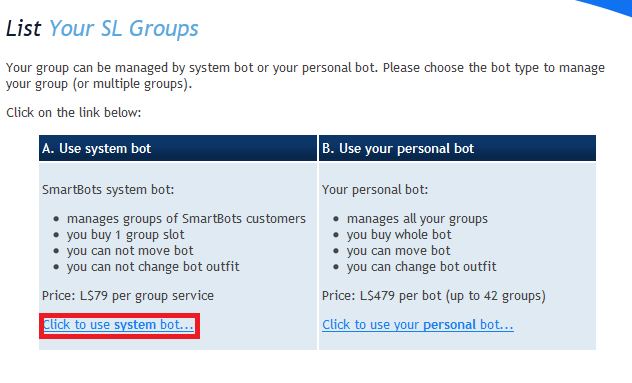
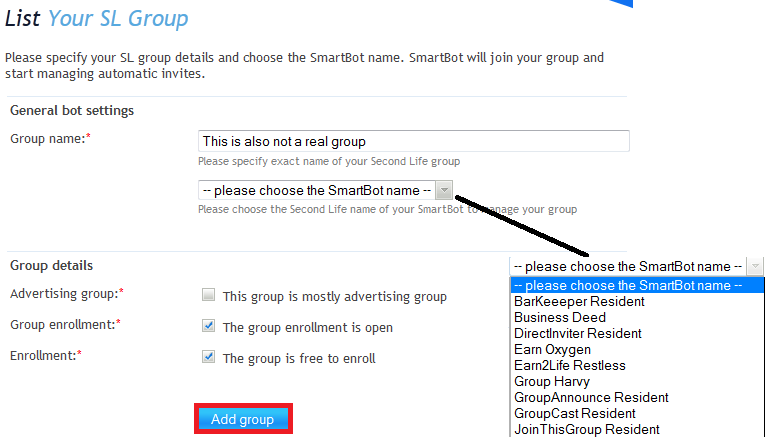
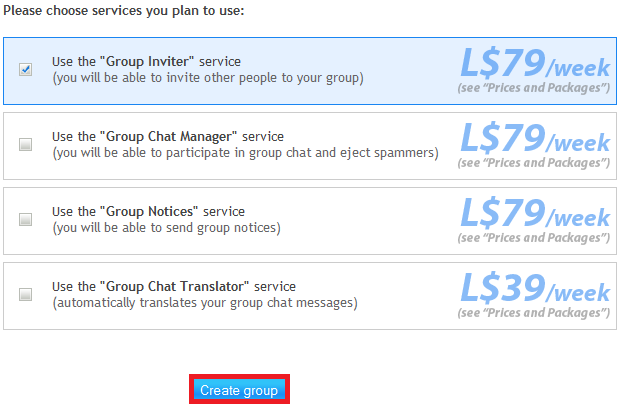
Congratulations! You have successfully added a group using the system bot.
Next Steps
For the group to start functioning the following steps need to be completed:
- You need to pay for the group: Instructions Here.
- You need to invite the bot into the group with a role that has the abilities that match the service you selected (Inviting the bot into an officer role is always the easiest option)
Once these steps are completed the group has begun to work.
Additional Steps
For the Group Inviter Service an additional step is required: You will need to rez an Interface device available here
The following steps apply to how to add a group using the personal bot (your bot should have already been created and should be a standard bot, it should also already be in the group):
6. Click "Click to use personal bot"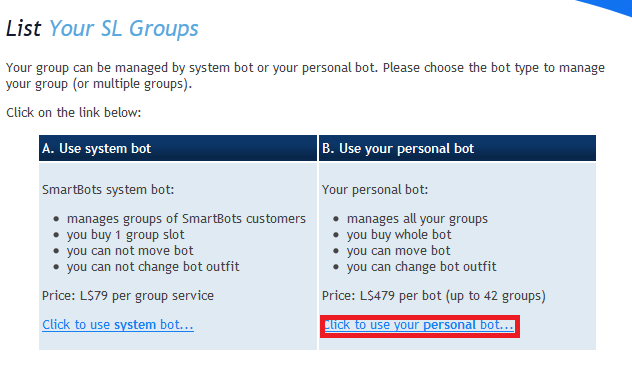
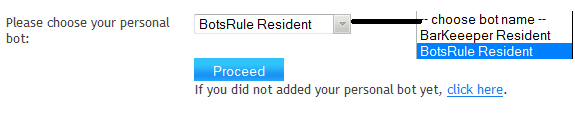
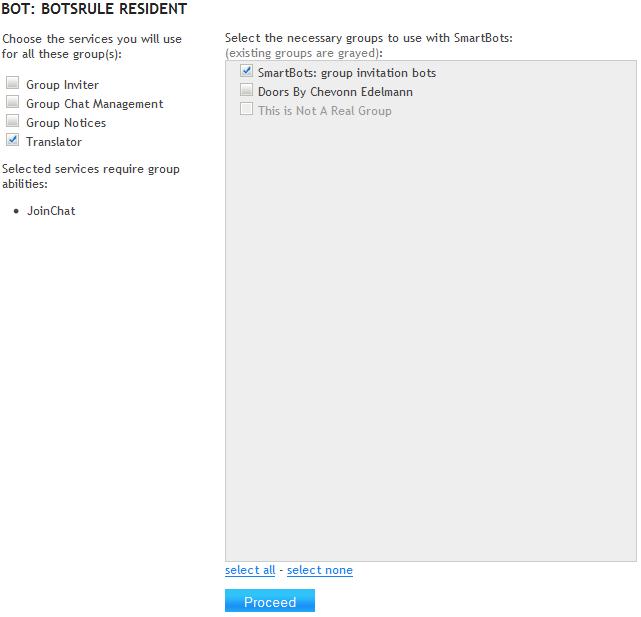
9. Your group has been listed successfully! It will now ask you to select if the group is a spam group.
Your group subscription will expire when your personal bot expires. You can read how to change the active services on a group here.
Additional Steps
For the Group Inviter Service an additional step is required: You will need to rez an Interface device available here
Abilities
The abilities needed for the bot to perform optimally differ with each service, it is recommended that you place the bot in an officer role as it contains most of the abilities the bot will need assuming it hasnt been changed.
A list is provided below:
- Group Inviter - Invite, Assign members to Assigners role (if inviting to a custom role)
- Group Chat Management - Join Group Chat, Moderate Group Chat, Eject from group
- Group Notices - Send notices
The abilities required may differ if additional services are used.