|
|
|
| Line 1: |
Line 1: |
| - |
You can configure your Barkeeper bot using IM messages. The tabs below shows how to access the various BARKEEPER options: |
+ |
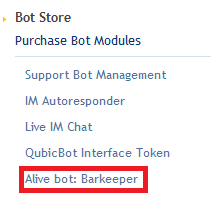
You can configure your Barkeeper bot using IM messages. To access the configuration page click "Alive bot: Barkeeper" on the left pane in your account dashboard
|
| |
|
|
|
| - |
<div class=blocksMenuAuto>
|
+ |
[[Image:BAKPR1.png|link=|center|border]]
|
| - |
* 1. Basic help
|
+ |
|
| - |
* 2. Commands
|
+ |
|
| - |
* 3. Change Messages
|
+ |
|
| - |
</div>
|
+ |
|
| |
|
|
|
| - |
<div class=blocksMenuAutoBlock>
|
+ |
== Interaction Messages ==
|
| - |
Alive Barkeeper is configured using IM messages. To start configuring Barkeeper, touch him:
|
+ |
|
| - |
[[Image:Barkeeper configure 1.jpg|link=|center|border]]
|
+ |
|
| |
|
|
|
| - |
After typing in "SB-BARKEEPER help" you will then receive a list of commands you can use to access the different menus available (shown in the next tab).
|
+ |
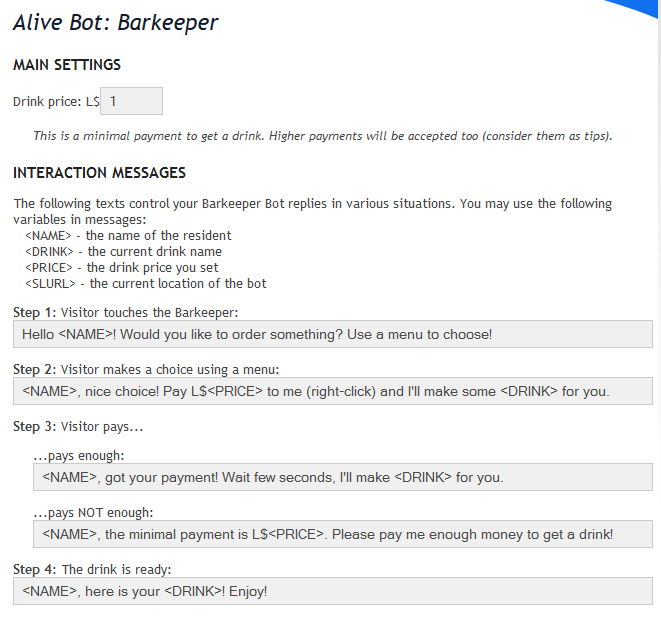
Here you can configure the various interaction messages that occur at different events:
|
| |
|
|
|
| - |
</div>
|
|
| |
|
|
|
| - |
<div class=blocksMenuAutoBlock>
|
+ |
[[Image:BAKPR2.png|link=|center|border|600px]] |
| - |
Typing "SB-BARKEEPER help" will provide you with a list of options which can be changed:
|
+ |
|
| - |
|
+ |
|
| - |
[[File:BarConfig1.png|link=|center|border]] |
+ |
|
| |
|
|
|
| - |
*SB-BARKEEPER set is explained below. It is used to change the default messages that the bot sends. To view a list of the messages please see the next tab and to get a description of them scroll down.
|
+ |
== Other Messages == |
| |
|
|
|
| - |
*SB-BARKEEPER reset changes back all options to default.
|
+ |
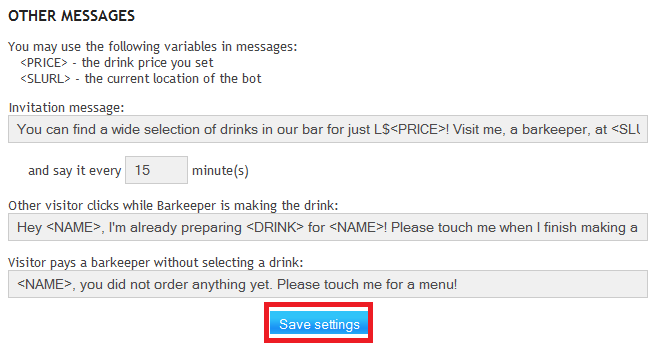
There are also messages that may occur while someone isnt interacting with the bot or two persons try to use it at the same time:
|
| |
|
|
|
| - |
</div>
|
+ |
[[Image:BAKPR3.png|link=|center|border|600px]] |
| |
|
|
|
| - |
<div class=blocksMenuAutoBlock>
|
+ |
Invitation message is sent at the specified interval in local chat. |
| |
|
|
|
| - |
Typing "SB-BARKEEPER get" will provide you with a list of the current available messages, their current settings and instructions on how to change them:
|
+ |
'''''You must save the settings after enabling the module or the messages will not be sent!''''' |
| - |
|
+ |
|
| - |
[[Image:BarConfig2.png|link=|center|border]]
|
+ |
|
| - |
|
+ |
|
| - |
Please see below for a description of what each message does.
|
+ |
|
| - |
|
+ |
|
| - |
</div>
|
+ |
|
| - |
|
+ |
|
| - |
== BARKEEPER Messages ==
|
+ |
|
| - |
|
+ |
|
| - |
Below is a table of the available messages and a description what they do:
|
+ |
|
| - |
|
+ |
|
| - |
{{Generic 2-table start|Message|Description}}
|
+ |
|
| - |
|- class="row-b"
|
+ |
|
| - |
| '''hello'''
|
+ |
|
| - |
| Message that is sent in local chat when someone touches the bot.
|
+ |
|
| - |
|
+ |
|
| - |
|- class="row-b"
|
+ |
|
| - |
|'''menu'''
|
+ |
|
| - |
|Text that is shown in menu that is displayed when someone touches the bot.
|
+ |
|
| - |
|
+ |
|
| - |
|- class="row-b"
|
+ |
|
| - |
|'''choice'''
|
+ |
|
| - |
|Message sent in local chat after someone makes their choice of drink.
|
+ |
|
| - |
|
+ |
|
| - |
|- class="row-b"
|
+ |
|
| - |
|'''noorder'''
|
+ |
|
| - |
|Displayed if someone pays the bot without choosing a drink.
|
+ |
|
| - |
|
+ |
|
| - |
|- class="row-b"
|
+ |
|
| - |
|'''gotmoney'''
|
+ |
|
| - |
|After they order their drink and pay the bot this message is displayed.
|
+ |
|
| - |
|
+ |
|
| - |
|- class="row-b"
|
+ |
|
| - |
|'''orderready'''
|
+ |
|
| - |
|When the drink is made this message will display when the drink gets sent to the person.
|
+ |
|
| - |
|
+ |
|
| - |
|- class="row-b"
|
+ |
|
| - |
|'''busy'''
|
+ |
|
| - |
| Displayed if someone else touches Barkeeper when he is making a drink.
|
+ |
|
| - |
|
+ |
|
| - |
|- class="row-b"
|
+ |
|
| - |
|'''invitation'''
|
+ |
|
| - |
|Message that is shouted at a set time interval.
|
+ |
|
| - |
|
+ |
|
| - |
{{Generic table end}}
|
+ |
|
| - |
|
+ |
|
| - |
To change a message type "SB-BARKEEPER set message= your message here". Replace "your message here" with what you want the bot to send. For eg changing the hello message:
|
+ |
|
| - |
|
+ |
|
| - |
SB-BARKEEPER set hello= Hello Nice to meet you!
|
+ |
|
| - |
|
+ |
|
| - |
Barkeeper will then provide a confirmation message saying that the option has been changed.
|
+ |
|
| - |
|
+ |
|
| - |
== Additional Commands ==
|
+ |
|
| - |
|
+ |
|
| - |
=== Disabling the Invitation Message ===
|
+ |
|
| - |
|
+ |
|
| - |
Barkeeper automatically invites nearby avatars to buy a drink by sending an "invitation" message. You can change this message or completely disable automatic invitation by setting the message to empty:
|
+ |
|
| - |
|
+ |
|
| - |
"SB-BARKEEPER set invitation="
|
+ |
|
| - |
|
+ |
|
| - |
=== Changing the Invitation Message Timer ===
|
+ |
|
| - |
|
+ |
|
| - |
The invite message is sent continuously as long as the bot is logged in or it the invitation message is not disabled.
|
+ |
|
| - |
|
+ |
|
| - |
To change how often the message gets sent out type "SB-BARKEEPER set shout_interval=minutes-minutes". For eg:
|
+ |
|
| - |
|
+ |
|
| - |
SB-BARKEEPER set shout_interval=10-15
|
+ |
|
| |
|
|
|
| |
[[Alive_Barkeeper_Bot|<<Go Back to Alive Barkeeper]] |
|
[[Alive_Barkeeper_Bot|<<Go Back to Alive Barkeeper]] |
| |
__NOTOC__ |
|
__NOTOC__ |