
Security code
|
m (→Setting the Security Code)
|
|||
| Line 3: | Line 3: | ||
== Setting the Security Code == |
== Setting the Security Code == |
||
| - | # Login to your account at [http://www. |
+ | # Login to your account at [http://www.mysmartbots.com mysmartbots.com].
|
| - | # |
+ |
# Navigate to your [https://www.mysmartbots.com/active/dashboard/ account dashboard]. |
| + | # Hover over the number of members in your group.
|
||
| + |
# Click 'group security code'. |
||
# Set the security code. |
# Set the security code. |
||
The following image will help you to locate the link: |
The following image will help you to locate the link: |
||
| - | [[Image:Security |
+ | [[Image:Security code v2.png|center|link=|border]] |
== Usage of Security Code == |
== Usage of Security Code == |
||
Revision as of 20:34, 18 February 2015
Group "Security Code" (also known as "Secret code") is a password for SmartBots-powered devices. It prevents other people from using and abusing your group.
Setting the Security Code
- Login to your account at mysmartbots.com.
- Navigate to your account dashboard.
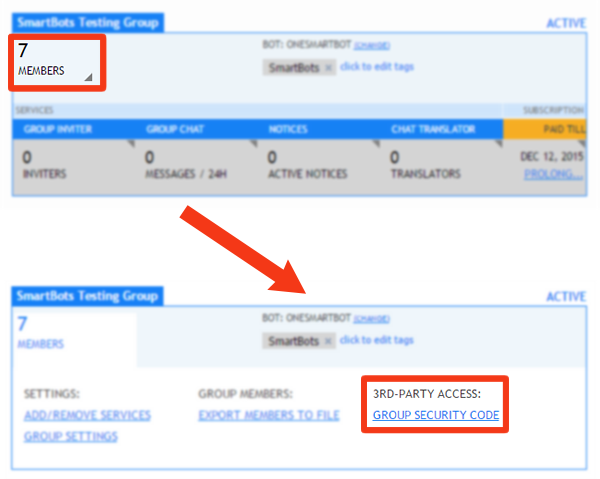
- Hover over the number of members in your group.
- Click 'group security code'.
- Set the security code.
The following image will help you to locate the link:
Usage of Security Code
The security code is being used everywhere you use the group name: rental plugins, SHX tools and other devices created by SmartBots partners.
Using the security code makes your group secure. Each device has its own way to specify the security code:
A. Security Code in config notecards
If your device uses the config notecards, enter your security code to the device's config notecard.
B. Using web interfaces
Some devices (like CasperVend and others) use web interface to setup your device. Copy and paste the Security Code to the web page.