
Setting up barkeeper inventory
|
QuincyJohnes (Talk | contribs)
(Created page with "Alive Barkeeper add-on allows you to create your own set of drinks, or use the pre-defined one already provided by SmartBots. When your visitor clicks on your Barkeeper bot in ...")
|
QuincyJohnes (Talk | contribs)
|
||
| Line 44: | Line 44: | ||
* Bot inventory page allows maximum 9 sets |
* Bot inventory page allows maximum 9 sets |
||
* Under each set, maximum 9 items can be added |
* Under each set, maximum 9 items can be added |
||
| + | |||
| + | __NOTOC__ |
||
Latest revision as of 23:07, 31 May 2019
Alive Barkeeper add-on allows you to create your own set of drinks, or use the pre-defined one already provided by SmartBots.
When your visitor clicks on your Barkeeper bot in Second Life, they receive a dialog of drink menu. This is the menu that you can customize. Read below on how to set this up.
To visit your Barkeeper Inventory page:
- Visit Alive Barkeeper add-on page
- Click on Personal Bot name (left-side menu)
- Click on Setup drinks inventory option
Creating inventory sets
Creating a set of drinks is an easy process and does not require too much time.
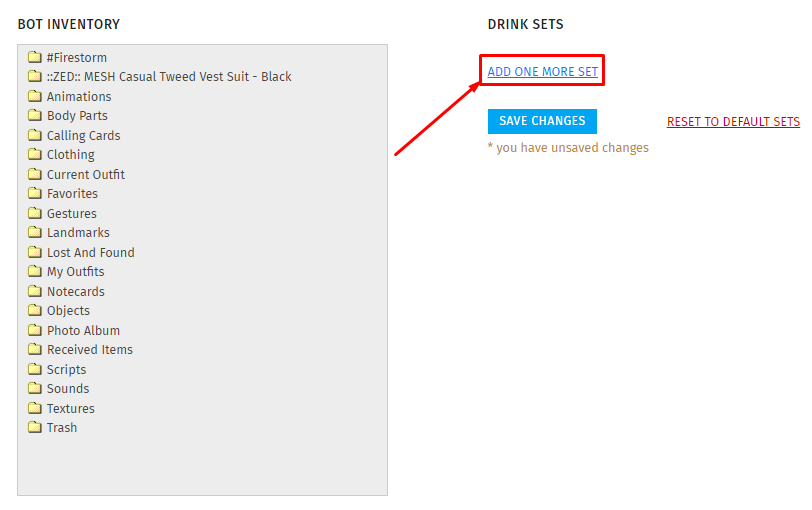
1. To add a new drink, click ADD ONE MORE SET option
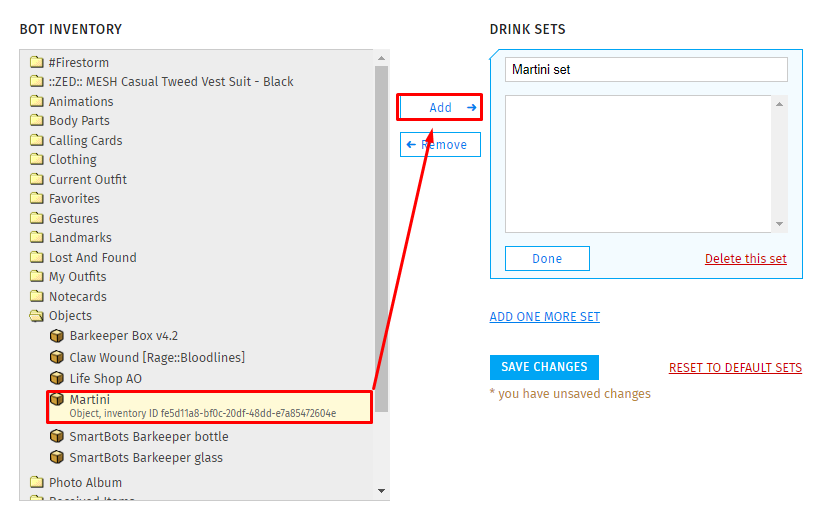
2. Find an object you want under Inventory Browser and click Add option
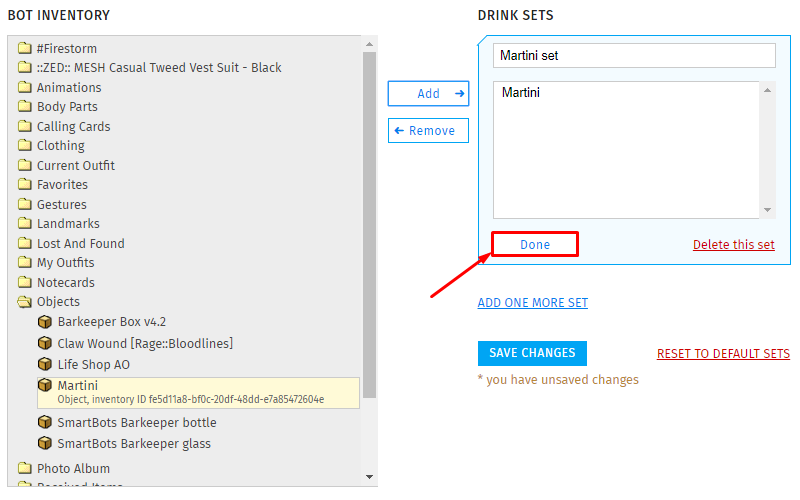
3. After adding the object(s) you want, click Done
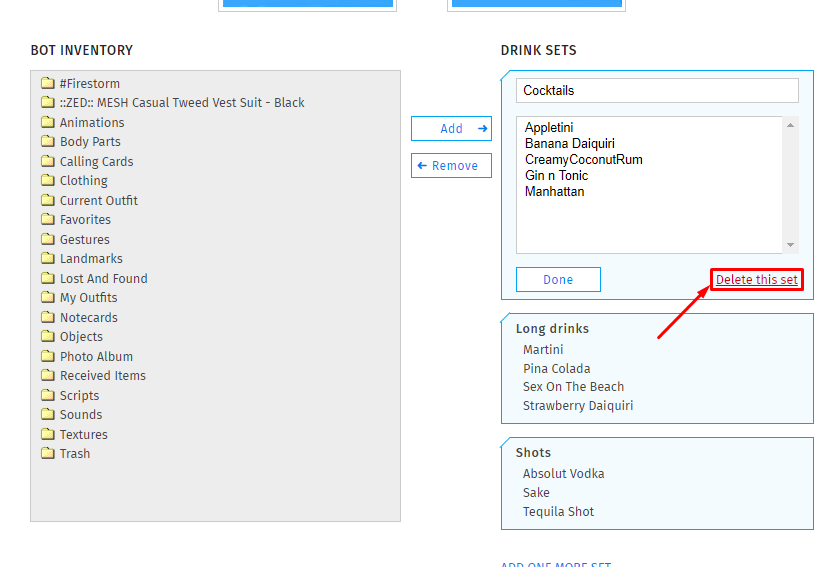
Removing existing sets
To delete an existing drink set you do not need anymore. Click "Edit" option or the Drink set title
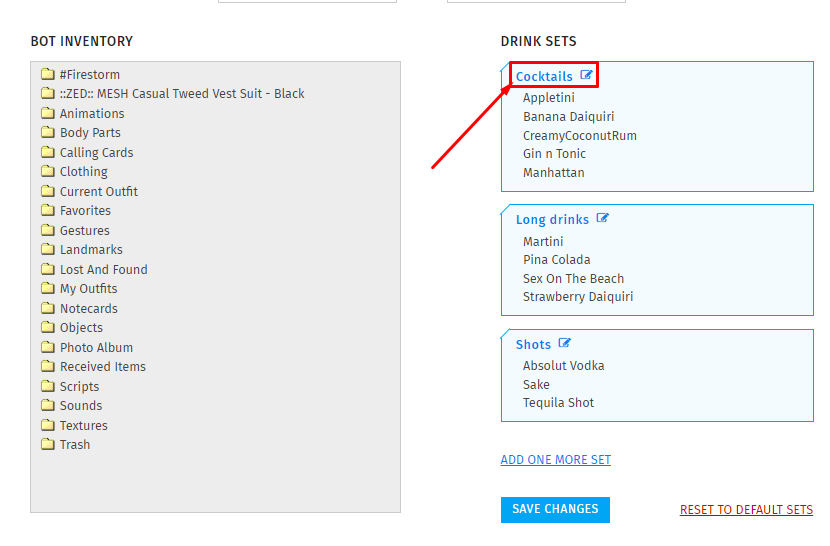
Afterwards, click on Delete this set option to completely remove it
Important sidenotes
Please keep these in mind while working with the Barkeeper Inventory page
- Your bot must have COPY + TRANSFER permissions on the items you add under your drink sets.
- Any adjustments you will make, without clicking Save changes - they will be lost.
- Bot inventory page allows maximum 9 sets
- Under each set, maximum 9 items can be added