
How to Add a group
The following shows you step-by-step instructions on how to list a group with smartbots.
Benefits
To use any of the features provided by smartbots, you must first create an account. You must then add a group to use these features (except for Personal Bots).
How to Add a group
- The first step after you have created an account is to go to your account dashboard, (you should be taken there automatically after logging in if not click here.
- If your account is new you will be prompt with an Account Wizard. You can close this wizard if you wish and follow these steps to add a group or these steps for how to add a Personal Bot.
- At the top of your account dashboard there will be 3 check boxes, please ensure that all 3 are checked and refresh the page:

- On your account dashboard locate the link that says "Add a new group to manage":

- You will then be prompted with a choice to either use the system bot or personal bot:

Click on the tabs below to see details of how to add a group using each method.
- Using system bot
- Using personal bot
The following steps apply to how to add a group using the system bot:
6. Click "Click to use system bot"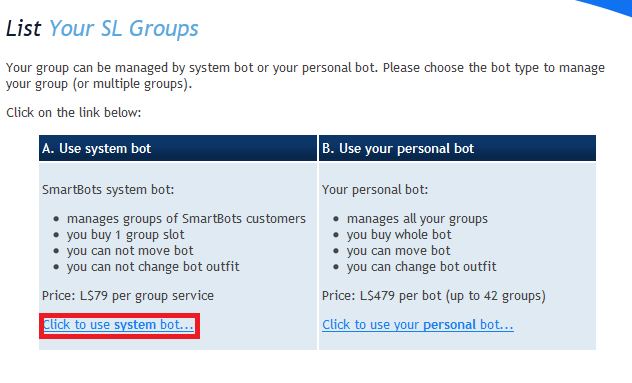
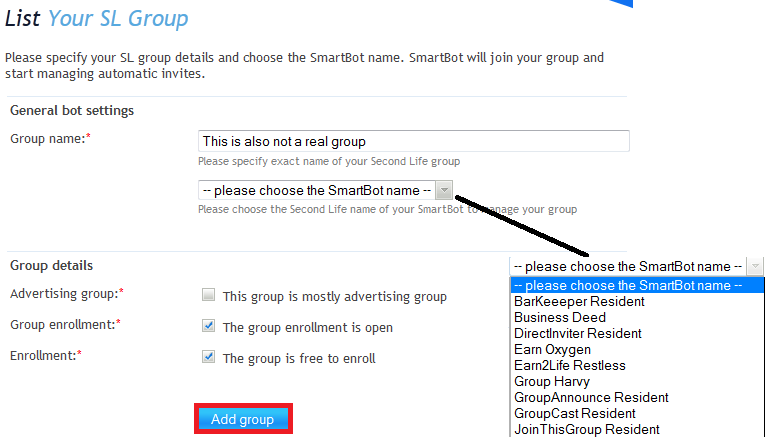
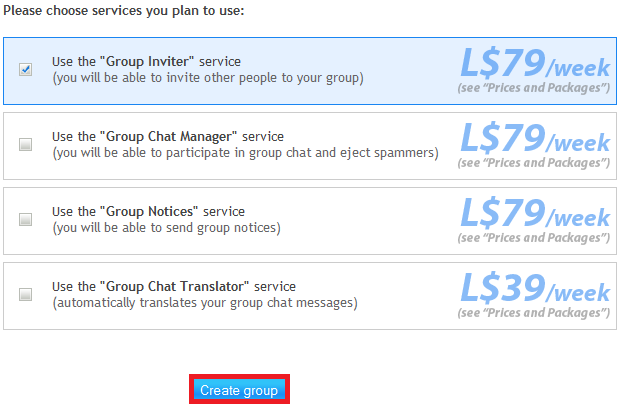
Congratulations! You have successfully added a group using the system bot.
Next Steps
For the group to start functioning the following steps need to be completed:
- You need to pay for the group: Instructions Here.
- You need to invite the bot into the group with a role that has the abilities that match the service you selected (Inviting the bot into an officer role is always the easiest option)
Once these steps are completed the group has beg
The following steps apply to how to add a group using the personal bot: