Contents
Support Managers
|
Alexander Pixels
English
| online |
|
Justina Mcminnar
English
| online |
|
Xartashah
English
| online |
|
Aerielle Kiyori
English
| offline |
|
Amyalka
English
| offline |
|
Chardaedae16
English
| offline |
|
Glaznah Gassner
English, Russian
| offline |
|
Makaylah Wurgle
English
| offline |
|
Rehnaeaislinn
English
| offline |
|
Sammyredfire
English
| offline |
|
shorty McKeenan
English
| offline |
| show offline managers | |
| English, Russian |
Group Manager
Group Manager
| Personal Bot Control Panel |
Overview
The Group Manager is a sub-feature of the Personal Bot Control Panel that allows you to manage the groups your bot is part of.
With Group Manager, you can:
- View all groups your bot is currently a member of
- Activate or deactivate group tags
- Switch between available group tags and roles
- Review group roles and permissions
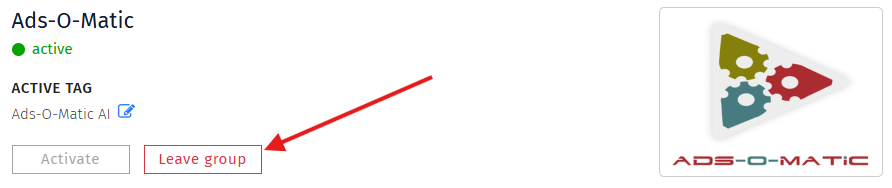
- Make your bot leave a group
Below are step-by-step instructions for each action.
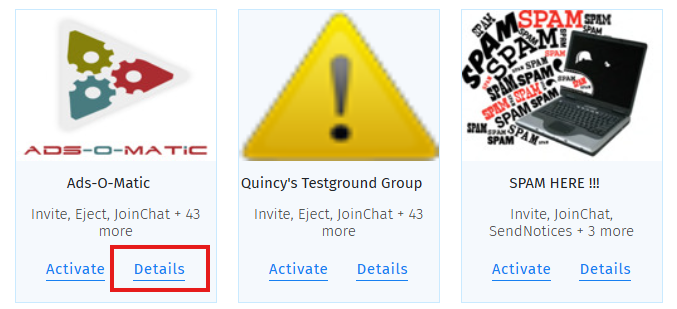
Browsing Groups
To view your bot’s current groups:
- Visit the Bot Control Panel
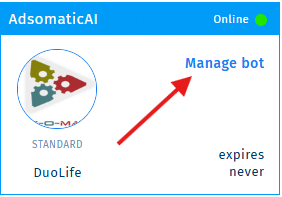
- Click Manage Bot
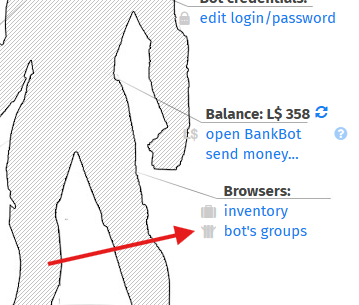
- Select Bot’s Groups
Activating Group Tags
To activate a group tag for your bot:
- Locate the group you want
- Click the Activate button
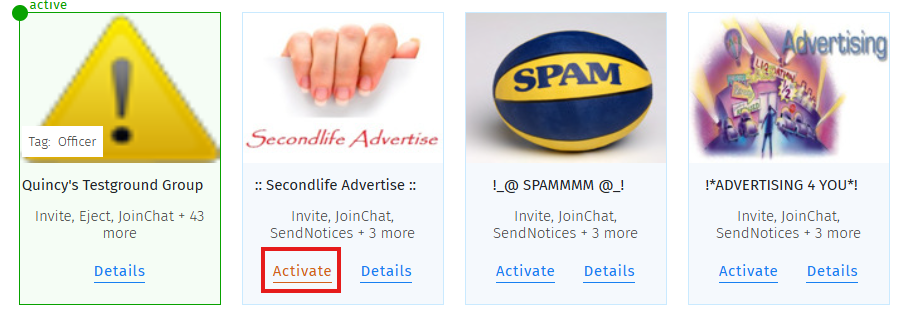
Once activated, the group tag will be displayed above your bot's head in Second Life.
Switching Between Group Tags
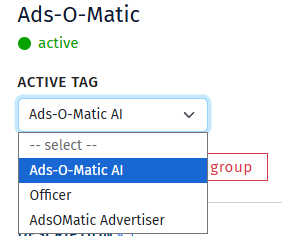
If your bot has multiple roles within a group, you can change between available tags:
- Click Details on the desired group
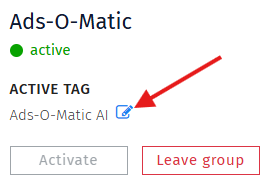
- Click the Edit icon next to the current group tag
- Select a different available group tag
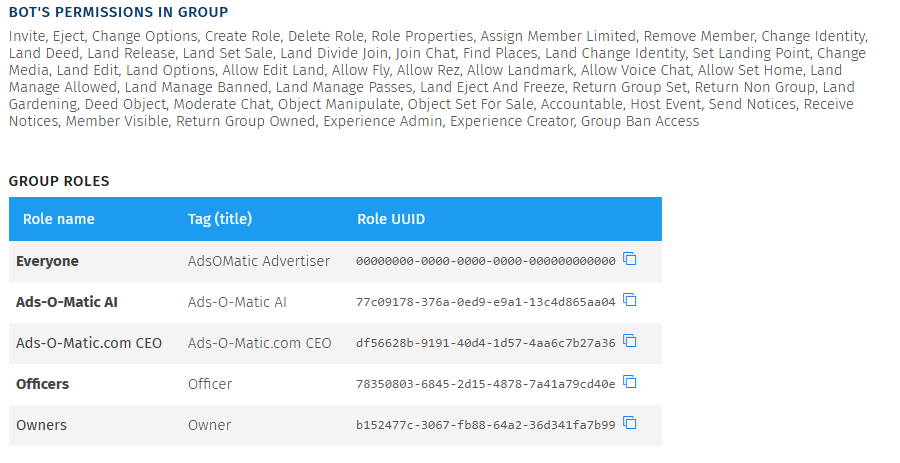
Viewing Group Roles & Permissions
Scroll down within the group information page to view:
- The defined roles within the group
- Your bot’s current permissions
Leaving a Group
To remove your bot from a group:
- Navigate to the group’s information page
- Click Leave Group at the top