
Group Chat Control Service
|
QuincyJohnes (Talk | contribs)
(→Chat control (Antispam))
|
|||
| (15 intermediate revisions not shown) | |||
| Line 1: | Line 1: | ||
__NOTOC__ |
__NOTOC__ |
||
| - | Group Chat |
+ | Group Chat Service allows you to use group chat without having to log in to Second Life using your web browser.
|
| + | |||
| + |
Group chat can be accessed by both owners of the account and appointed moderators of the group (see below). |
||
| + | |||
| + | |||
== Features == |
== Features == |
||
{{#httpimg: image=http://www.smartbots2life.com/images/service_chat.jpg|class=imageRight}} |
{{#httpimg: image=http://www.smartbots2life.com/images/service_chat.jpg|class=imageRight}} |
||
| - | + |
1. '''LISTEN AND TALK''' |
|
| - | * Send |
+ |
* Read messages in group chat in real time
|
| - | + | * Send messages to the chat (they go in the name of the bot)
|
|
| + |
2. '''EJECT SPAMMERS''' |
||
| + |
* Send warnings to particular members |
||
* Eject members from the group. |
* Eject members from the group. |
||
| - | + |
3. '''MODERATOR ACCOUNTS''' |
|
| + |
* Create separate chat moderator accounts |
||
* View moderator's activity |
* View moderator's activity |
||
| + | |||
| + | == Chat Logs == |
||
| + | |||
| + | Group chat displays the same information as the chat in Second Life, but the Group Chat service keeps chat logs for the last 24 hours, even if the owner and all the moderators are offline |
||
| + | |||
| + | |||
| + | The chat logs can be viewed by choosing between the log time as seen below: |
||
| + | |||
| + | [[File:Chat_logs_3.png|center|link=]] |
||
| + | |||
| + | Note you can read the current chat, as well as send messages to the group ( message will be sent on your behalf in the name of the bot) |
||
== Chat control (Antispam) == |
== Chat control (Antispam) == |
||
| - | You can warn and eject spammers and abusers from your SL group. |
+ | You can mute/unmute group chat, warn and eject spammers and abusers (with addition members to a blacklist or not) from your SL group. Also you can write the ejection reason from group in pop-up menu it will be sent via IM violator automatically. |
This is easily done by using SmartBots group chat interface: |
This is easily done by using SmartBots group chat interface: |
||
| - | + | ||
| + |
[[Image:Chat_group_4.png|center|link=|border]]
|
||
| + | |||
| + |
You may also use the anti spam device to automatically manage chat. See [[Anti Spam Device]] for more details. |
||
== Moderators == |
== Moderators == |
||
| - | You may assign |
+ | You may assign other residents to moderate your chat. |
| + | |||
| + | '''Moderator''' accounts have access to the group chat only (it can't edit, create or delete SmartBots groups). However, all moderator's activity is logged, hence you can check your staff activity later. |
||
| + | |||
| + | [[Trusted_Managers|Read more]] here about managing moderators accounts. |
||
| + | |||
| + | == How To Activate == |
||
| + | |||
| + | To activate the service: |
||
| + | |||
| + | #Login to your account |
||
| + | #Locate your group name |
||
| + | #Click "add/remove services" |
||
| + | #Check the box that says "Use Group Chat Manager Service" |
||
| - | + |
See [[Enabling and Cancelling Services]] for detailed instructions. |
|
| - | [[ |
+ |
See [[Setting up bot for chat control]] for details on how to configure the bot to work with this service. |
{{Inviter next|[[FAQ|Read SmartBots FAQ]]|[[Prices|Know more about SmartBots prices and packages]]}} |
{{Inviter next|[[FAQ|Read SmartBots FAQ]]|[[Prices|Know more about SmartBots prices and packages]]}} |
||
| + | [[Category: Existing customers]] |
||
[[Category: Group Chat Control Service]] |
[[Category: Group Chat Control Service]] |
||
| - | |||
Latest revision as of 00:04, 4 May 2017
Group Chat Service allows you to use group chat without having to log in to Second Life using your web browser.
Group chat can be accessed by both owners of the account and appointed moderators of the group (see below).
Features
 1. LISTEN AND TALK
- Read messages in group chat in real time
- Send messages to the chat (they go in the name of the bot)
2. EJECT SPAMMERS
- Send warnings to particular members
- Eject members from the group.
3. MODERATOR ACCOUNTS
- Create separate chat moderator accounts
- View moderator's activity
Chat Logs
Group chat displays the same information as the chat in Second Life, but the Group Chat service keeps chat logs for the last 24 hours, even if the owner and all the moderators are offline
The chat logs can be viewed by choosing between the log time as seen below:

Note you can read the current chat, as well as send messages to the group ( message will be sent on your behalf in the name of the bot)
Chat control (Antispam)
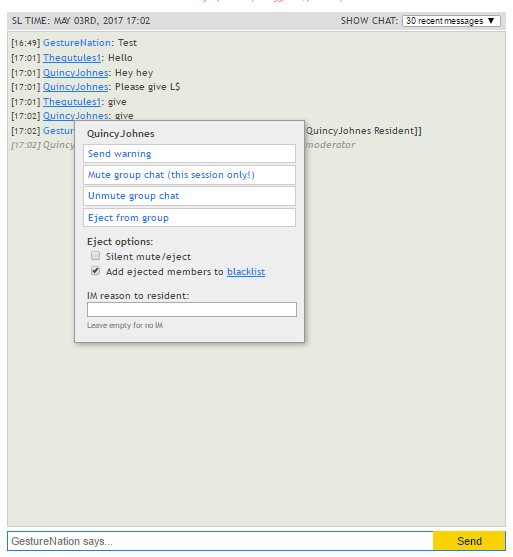
You can mute/unmute group chat, warn and eject spammers and abusers (with addition members to a blacklist or not) from your SL group. Also you can write the ejection reason from group in pop-up menu it will be sent via IM violator automatically.
This is easily done by using SmartBots group chat interface:
You may also use the anti spam device to automatically manage chat. See Anti Spam Device for more details.
Moderators
You may assign other residents to moderate your chat.
Moderator accounts have access to the group chat only (it can't edit, create or delete SmartBots groups). However, all moderator's activity is logged, hence you can check your staff activity later.
Read more here about managing moderators accounts.
How To Activate
To activate the service:
- Login to your account
- Locate your group name
- Click "add/remove services"
- Check the box that says "Use Group Chat Manager Service"
See Enabling and Cancelling Services for detailed instructions.
See Setting up bot for chat control for details on how to configure the bot to work with this service.