
LocalChat Autoresponder (add-on)
|
QuincyJohnes (Talk | contribs)
(Created page with "{{Bot addon| store_id=47| menu_text=LocalChat Autoresponder| docs=LocalChat Autoresponder (add-on)| }} == Overview == LocalChat Autoresponder allows your [[Personal Bots|Perso...")
|
QuincyJohnes (Talk | contribs)
(→Useful hints)
|
||
| (12 intermediate revisions not shown) | |||
| Line 1: | Line 1: | ||
{{Bot addon| |
{{Bot addon| |
||
| - | store_id= |
+ | store_id=48| |
menu_text=LocalChat Autoresponder| |
menu_text=LocalChat Autoresponder| |
||
docs=LocalChat Autoresponder (add-on)| |
docs=LocalChat Autoresponder (add-on)| |
||
| Line 7: | Line 7: | ||
== Overview == |
== Overview == |
||
| - | LocalChat Autoresponder allows your [[Personal Bots|Personal Bot]] to auto-respond in Local Chat using rules you create |
+ | LocalChat Autoresponder allows your [[Personal Bots|Personal Bot]] to auto-respond in Local Chat using rules you create |
| - | [[Image: |
+ | [[Image:Front_page_LCAA.png|center|link=|border]] |
| - | Your bot can perform tasks |
+ | Your bot can perform several tasks while auto-responding: |
# Respond with text to match messages |
# Respond with text to match messages |
||
# Send group invitation and/or inventory offers |
# Send group invitation and/or inventory offers |
||
# Respond to several messages at once |
# Respond to several messages at once |
||
| - | == Creating rules |
+ | == Creating rules == |
To create a new rule, visit LocalChat Autoresponder page and click '''Add rule'''. |
To create a new rule, visit LocalChat Autoresponder page and click '''Add rule'''. |
||
| - | Each rule comes with |
+ | Each rule comes with following options: |
* '''Match''' - acts as a trigger message for every rule |
* '''Match''' - acts as a trigger message for every rule |
||
* '''Case sensitive''' - defines if your '''Match''' message is case-sensitive or not |
* '''Case sensitive''' - defines if your '''Match''' message is case-sensitive or not |
||
| - | * '''Say to chat''' - A message that bot |
+ | * '''Say to chat''' - A message that bot sends out |
| - | * '''Show variables''' - Shows |
+ | * '''Show variables''' - Shows variables: '''"%SL_NAME%"''' and '''"%FIRST_NAME%"''' |
* '''Invite to group''' - Sends a group invite |
* '''Invite to group''' - Sends a group invite |
||
* '''Give inventory''' - Sends an inventory offer |
* '''Give inventory''' - Sends an inventory offer |
||
* '''Stop if rule matches''' - Read more below |
* '''Stop if rule matches''' - Read more below |
||
| - | + | == Examples == |
|
| - | === |
+ | === 1. Simple reply-to-all === |
| - | + |
This ruleset will reply to all local chat messages:
|
|
| - | + |
'''Rule 1:'''<br>
|
|
| + | Match: -- empty --<br> |
||
| + |
Say to chat: ''Hello %FIRST_NAME%! Please open our website for more information.''<br>
|
||
| + | Stop if matches: YES |
||
| - | + |
[[Image:Reply_to_all_LCAR.png|center|link=|780px|border]]
|
|
| - | === |
+ | === 2. Multiple variants with a default reply === |
| - | + |
This ruleset allows setting up various replies to various local chat messages (as much as you need):
|
|
| - | [[Image: |
+ | '''Rule 1'''<br> |
| + | Match: ''website''<br> |
||
| + | Say to chat: ''Our website is https://www.mysmartbots.com''<br> |
||
| + | Stop if matches: YES |
||
| + | |||
| + | '''Rule 2'''<br> |
||
| + | Match: ''landmark''<br> |
||
| + | Say to chat: ''Here's the landmark to our location!''<br> |
||
| + | Give inventory: ''SmartBots Landmark''<br> |
||
| + | Stop if matches: YES |
||
| + | |||
| + | '''Rule 3'''<br> |
||
| + | Match: -- empty --<br> |
||
| + | Say to chat: ''To get more help, contact our support managers!''<br> |
||
| + | Stop if matches: YES |
||
| + | |||
| + | [[Image:3_rules.png|center|link=|780px|border]] |
||
| + | |||
| + | === 3. Matching several rules === |
||
| + | |||
| + | This ruleset shows how multiple rules can match one message (saying "hi" or "hello" and then "Welcome") |
||
| + | |||
| + | '''Rule 1'''<br> |
||
| + | Match: ''hi''<br> |
||
| + | Say to chat: ''Hi there %FIRST_NAME%!''<br> |
||
| + | Stop if matches: NO |
||
| + | |||
| + | '''Rule 2'''<br> |
||
| + | Match: ''hello''<br> |
||
| + | Say to chat: ''Hello %FIRST_NAME%!''<br> |
||
| + | Stop if matches: NO |
||
| + | |||
| + | '''Rule 3'''<br> |
||
| + | Match: -- empty --<br> |
||
| + | Say to chat: ''Welcome to our office! You can find more info on boards''<br> |
||
| + | Stop if matches: YES |
||
| + | [[Image:Follow-up_LCAR.png|center|link=|780px|border]] |
||
== Useful hints == |
== Useful hints == |
||
| + | * '''Match words''' can be separated by commas, example: ''Hello, greetings, hi'' |
||
* If you leave '''Match''' message blank, that will be your default rule |
* If you leave '''Match''' message blank, that will be your default rule |
||
* There is no limit on how many rules you can create |
* There is no limit on how many rules you can create |
||
Latest revision as of 07:50, 9 February 2019
This is a bot add-on:
- Buy in web Bot Store
- Then attach to your bot
- read docs
- contact support
Overview
LocalChat Autoresponder allows your Personal Bot to auto-respond in Local Chat using rules you create
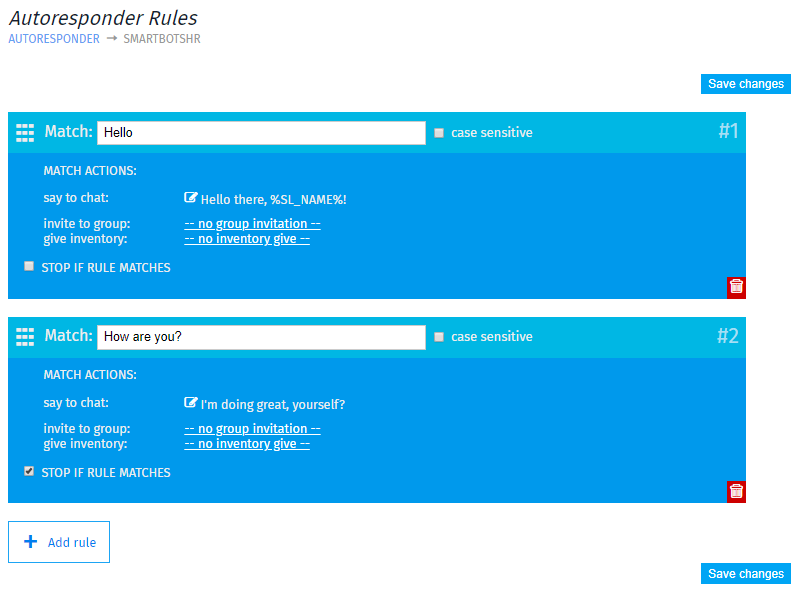
Your bot can perform several tasks while auto-responding:
- Respond with text to match messages
- Send group invitation and/or inventory offers
- Respond to several messages at once
Creating rules
To create a new rule, visit LocalChat Autoresponder page and click Add rule.
Each rule comes with following options:
- Match - acts as a trigger message for every rule
- Case sensitive - defines if your Match message is case-sensitive or not
- Say to chat - A message that bot sends out
- Show variables - Shows variables: "%SL_NAME%" and "%FIRST_NAME%"
- Invite to group - Sends a group invite
- Give inventory - Sends an inventory offer
- Stop if rule matches - Read more below
Examples
1. Simple reply-to-all
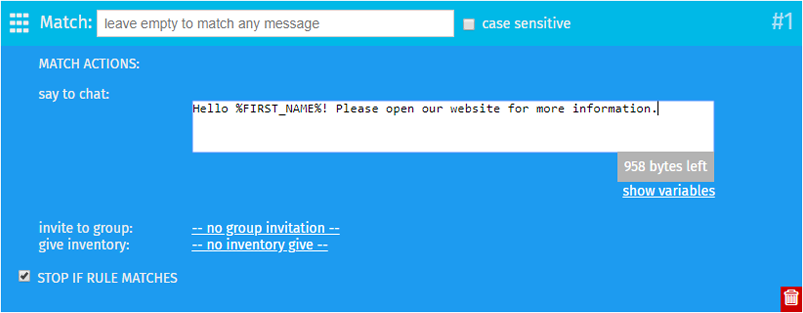
This ruleset will reply to all local chat messages:
Rule 1:
Match: -- empty --
Say to chat: Hello %FIRST_NAME%! Please open our website for more information.
Stop if matches: YES
2. Multiple variants with a default reply
This ruleset allows setting up various replies to various local chat messages (as much as you need):
Rule 1
Match: website
Say to chat: Our website is https://www.mysmartbots.com
Stop if matches: YES
Rule 2
Match: landmark
Say to chat: Here's the landmark to our location!
Give inventory: SmartBots Landmark
Stop if matches: YES
Rule 3
Match: -- empty --
Say to chat: To get more help, contact our support managers!
Stop if matches: YES

3. Matching several rules
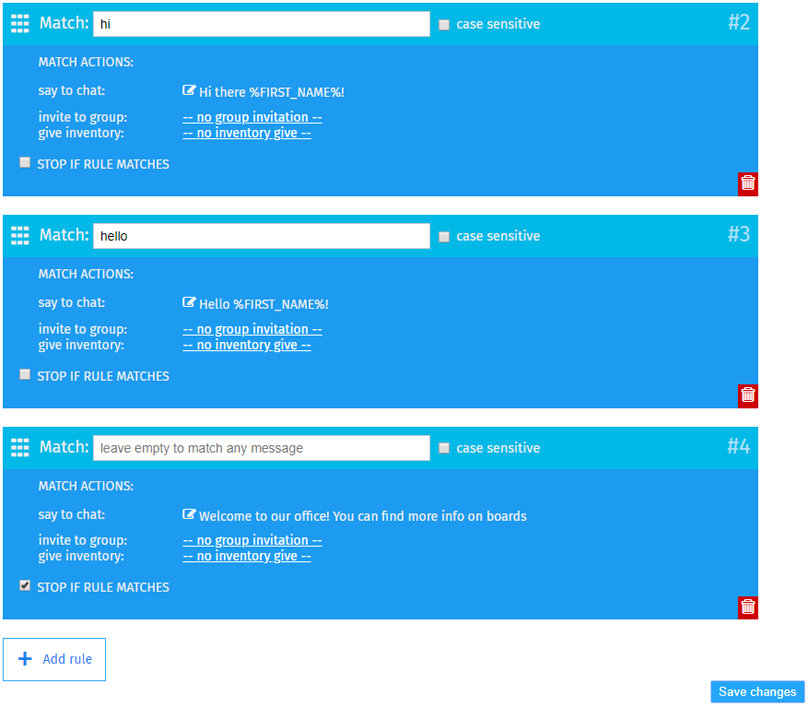
This ruleset shows how multiple rules can match one message (saying "hi" or "hello" and then "Welcome")
Rule 1
Match: hi
Say to chat: Hi there %FIRST_NAME%!
Stop if matches: NO
Rule 2
Match: hello
Say to chat: Hello %FIRST_NAME%!
Stop if matches: NO
Rule 3
Match: -- empty --
Say to chat: Welcome to our office! You can find more info on boards
Stop if matches: YES
Useful hints
- Match words can be separated by commas, example: Hello, greetings, hi
- If you leave Match message blank, that will be your default rule
- There is no limit on how many rules you can create
- The rules on top take priority over the one on the bottom, eg if you have a rule that says "if: hi" the bot will say "hello" and another that says "if: hi how are you" the bot will say "i am fine thank you", the one on top will occur i.e the bot will say hello.
- If you are using give inventory feature, make sure the object has copy + transfer permissions
How to purchase
See the Purchasing Add-Ons page for step-by-step add-on activation instructions.