Security Bot configuration
|
QuincyJohnes (Talk | contribs)
|
QuincyJohnes (Talk | contribs)
|
||
| Line 1: | Line 1: | ||
== Overview == |
== Overview == |
||
| - | [[Security Bot (add-on)|Security Bot add-on]] allows your |
+ | [[Security Bot (add-on)|Security Bot add-on]] allows your [[Personal Bots|Personal Bot]] to act as your parcel security. Below you will find all the instructions needed to configure the add-on. |
| - | == Security Setup == |
+ | '''IMPORTANT:''' Please be advised that in-order for the add-on to work, bot must be an '''Estate Manager''' or parcel must be '''Group Owned''' and bot must have group permissions. |
| + | |||
| + |
=== Security Setup === |
||
In general, there are 3 types of security modes that you can enable. You can access this page by visiting your going over to Security Bot add-on and click '''Use ban lists''' |
In general, there are 3 types of security modes that you can enable. You can access this page by visiting your going over to Security Bot add-on and click '''Use ban lists''' |
||
| Line 10: | Line 12: | ||
| - | # '''Block all + allow in allowed list:''' Bot will not allow anyone to enter the parcel unless they're added on '''allowed lists''' (See '''access lists''' below) |
+ | # '''Block all + allow in allowed list:''' Bot will not allow anyone to enter the parcel unless they're added on '''allowed lists''' (See '''Managing access lists''' below) |
# '''Allow all + block all in blocked list:''' Bot will allow everyone to enter except for those who are added on '''blocked list'''. |
# '''Allow all + block all in blocked list:''' Bot will allow everyone to enter except for those who are added on '''blocked list'''. |
||
# '''Welcome message:''' Bot sends this IM to anyone who lands as a greeting. Can be left blank for no greeting. |
# '''Welcome message:''' Bot sends this IM to anyone who lands as a greeting. Can be left blank for no greeting. |
||
| Line 18: | Line 20: | ||
# '''Kick message:''' The text that bot sends to visitor before kicking them. |
# '''Kick message:''' The text that bot sends to visitor before kicking them. |
||
| - | + | == Managing access lists == |
|
| - | + | The access lists define who gets to skip the bot's security under '''Security Modes''' or fully workaround it. |
|
| - | + | * If a resident is added to '''blocked list''': Bot will immediately eject them from parcel. |
|
| + | * If a resident is added to '''allowed list''': Bot will let them enter on any conditions. |
||
| - | [[File: |
+ | To add someone to either of the list: |
| + | # Visit your add-on page & click '''Edit access lists''' |
||
| + | # Click '''add resident'''[[File:Security_Bot_access_list_highlighted.png|center|link=]] |
||
| + |
# Enter SL name and click '''Add resident'''[[File:Security_bot_access_lists_adding_resident.png|center|link=]] |
||
# '''Select your bot:''' Choose which personal bot is the sender of the message |
# '''Select your bot:''' Choose which personal bot is the sender of the message |
||
Revision as of 16:45, 30 September 2020
Overview
Security Bot add-on allows your Personal Bot to act as your parcel security. Below you will find all the instructions needed to configure the add-on.
IMPORTANT: Please be advised that in-order for the add-on to work, bot must be an Estate Manager or parcel must be Group Owned and bot must have group permissions.
Security Setup
In general, there are 3 types of security modes that you can enable. You can access this page by visiting your going over to Security Bot add-on and click Use ban lists
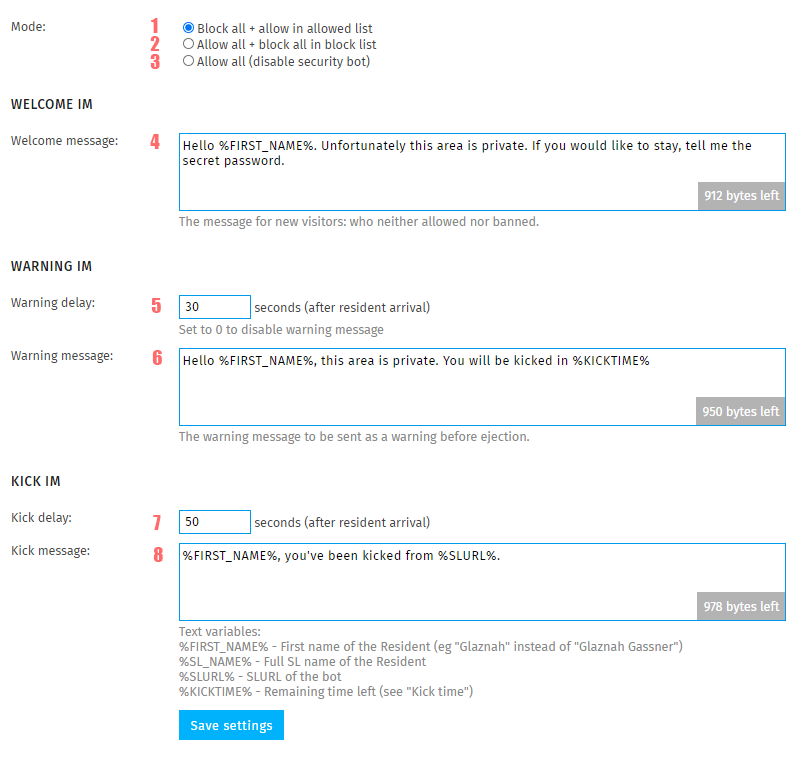
- Block all + allow in allowed list: Bot will not allow anyone to enter the parcel unless they're added on allowed lists (See Managing access lists below)
- Allow all + block all in blocked list: Bot will allow everyone to enter except for those who are added on blocked list.
- Welcome message: Bot sends this IM to anyone who lands as a greeting. Can be left blank for no greeting.
- Warning delay: Defines the amount of time (seconds) before Warning message is sent after visitors arrival.
- Warning message: The text that bot sends to visitor as a warning.
- Kick delay: Defines the amount of time (seconds) before Kick message is sent after visitors arrival.
- Kick message: The text that bot sends to visitor before kicking them.
Managing access lists
The access lists define who gets to skip the bot's security under Security Modes or fully workaround it.
- If a resident is added to blocked list: Bot will immediately eject them from parcel.
- If a resident is added to allowed list: Bot will let them enter on any conditions.
To add someone to either of the list:
- Visit your add-on page & click Edit access lists
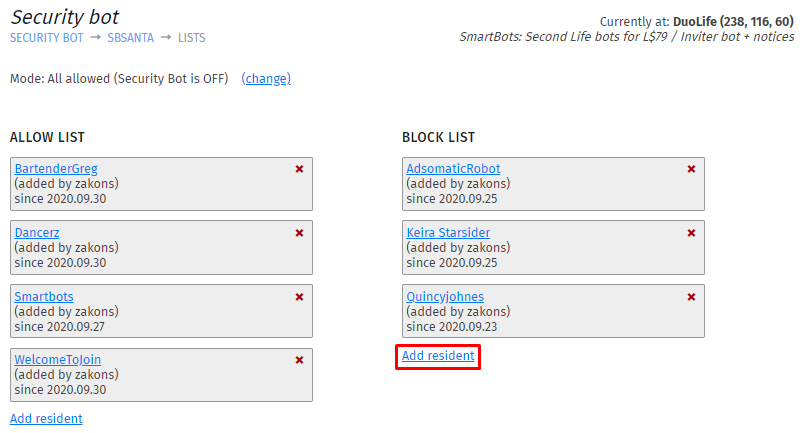
- Click add resident
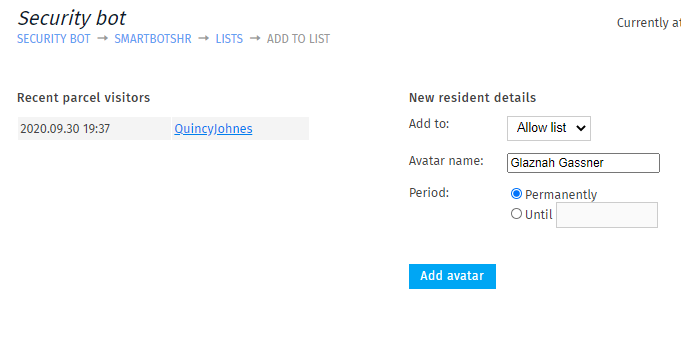
- Enter SL name and click Add resident
- Select your bot: Choose which personal bot is the sender of the message
- Send on: Select the first date of the message to be sent on.
- Time: Fill out on which time message is supposed to deliver, be advised - time format is in 24 hour clock (a.k.a "Military Time")
- Add delivery time: Adds another time entry.
- Repeat: Enable this option to convert your message to periodic
- Repeat (Daily/Weekdays): Choose from the drop-down if your message should deliver daily or on specific weekdays.
- Every: Send message on every inserted value (1 day - everyday, 2 days - every 2nd day, etc) - If "Weekdays" is selected in an option 5 - you choose days of the week instead of this.
- Message Text: This is the body/text of your message.
- Byte Count: Displays maximum length of your notice text.
</div>
Message Calendar
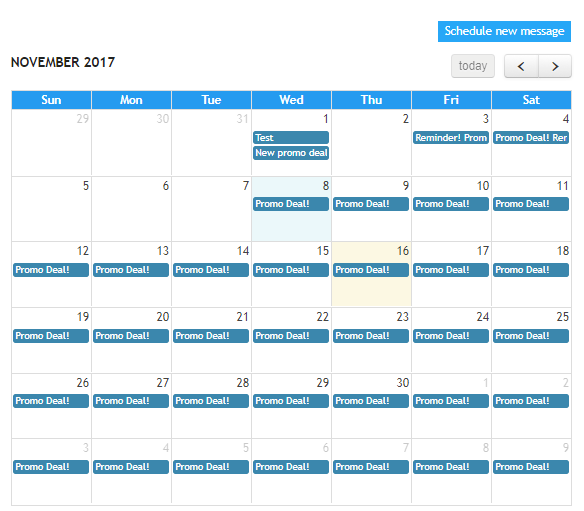
Message Calendar allows you to keep track of your message schedule to see on which dates of the month your messages are scheduled to be sent out.
Editing/removing scheduled messages
Clicking on each date of the calendar will display the list of your scheduled messages for the selected date.
To remove/edit the message:
- Click the specific date on the calendar
- Hover your mouse over top-right corner of the message
- The menu of following option will appear:
-
- Edit message: Takes you to message editor
- This occurrence only (remove): Removes the message for the specified date only
- WHOLE sequence (remove): Removes the entire periodic message