
Outfit Rotator
|
QuincyJohnes (Talk | contribs)
(Created page with "== General Information == Outfit Rotator is an intuitive add-on for Personal Bots to automatically model appearance with easy-to-use web interface and configur...")
|
QuincyJohnes (Talk | contribs)
|
||
| (10 intermediate revisions not shown) | |||
| Line 1: | Line 1: | ||
| - | == |
+ | {{Bot addon| |
| + |
store_id=42|
|
||
| + |
menu_text=Outfit Rotator|
|
||
| + |
docs=Outfit Rotator|
|
||
| + | }} |
||
| - | + |
<videoflash>vc0lHZ8nTQ4|624|345</videoflash>
|
|
| - | + |
Outfit Rotator is an add-on for [[Personal_Bots|Personal Bots]] to automatically change model appearance wearing pre-configured outfit folders. |
|
| - | + |
Bot rotates outfits, announcing them to the local chat.
|
|
| - | + |
[[Image:OutfitRotator2.png|border]]
|
|
| - | |||
| - | |||
| - | |||
| - | |||
| - | + | == Setting up == |
|
| - | + |
The add-on now requires to setup several folders in the bot's inventory: '''Base folder''' and '''Outfit folders'''
|
|
| - | + |
'''Creating base folder:'''
|
|
| - | + |
* Base folder represents the objects, that the bot '''SHOULD NOT''' take off when changing outfits (e.g shape, skin, hair, mesh body etc)
|
|
| - | + | ||
| - | + | ||
| - | + |
'''Creating outfit folders''' |
|
| - | + |
* Outfit folders represent objects to which bot will be changing into.
|
|
| - | + | We recommend setting up these under one main folder of bot's inventory. (Example screenshot below) |
|
| + | [[Image:Outfit_Rotator_folders.png|border]] |
||
| + | |||
| + | Move objects into these respective folders: |
||
| + | |||
| + | # '''Method #1:''' Locate original files from your bot's '''Appearance Outfits''' and copy them into above mentioned folders (More about appearance outfits below) |
||
| + | # '''Method #2:''' Drag and drop items into above mentioned folders |
||
| + | |||
| + |
Once done, add '''Base folder''' and '''Outfit folders''' into Outfit Rotator page
|
||
| + | |||
| + | [[Image:Outfit_Rotator_reworked.png|border]] |
||
| + | |||
| + | You can now set local chat message for each outfit, along with a outfit display time. Bot starts wearing outfits automatically. |
||
| + | |||
| + | == Creating outfits == |
||
| + | |||
| + |
Outfits can be created by logging into your bot using SL Viewer (native, Firestorm etc). Proceed with the following steps:
|
||
| + | |||
| + | # Login to your bot with any Viewer |
||
| + | # Dress up your bot |
||
| + | # Go to your bot's Outfits & click "Wearing"<br>[[Image:Outfitswearing.png|border|center]] |
||
| + | # Scroll down and save the outfit to a separate folder<br>[[Image:Savingoutfit2.png|border|center]] |
||
| + | # Repeat for every outfit you need |
||
| + | |||
| + |
'''NOTE:''' If you do not want your bot to take off particular objects on each outfit change (such as: hair, underwear, tattoos, rings, etc) - We recommend to create separate folder and move these kind of items there.
|
||
| - | |||
__NOTOC__ |
__NOTOC__ |
||
Latest revision as of 13:37, 22 September 2021
This is a bot add-on:
- Buy in web Bot Store
- Then attach to your bot
- read docs
- contact support
Outfit Rotator is an add-on for Personal Bots to automatically change model appearance wearing pre-configured outfit folders.
Bot rotates outfits, announcing them to the local chat.

Setting up
The add-on now requires to setup several folders in the bot's inventory: Base folder and Outfit folders
Creating base folder:
- Base folder represents the objects, that the bot SHOULD NOT take off when changing outfits (e.g shape, skin, hair, mesh body etc)
Creating outfit folders
- Outfit folders represent objects to which bot will be changing into.
We recommend setting up these under one main folder of bot's inventory. (Example screenshot below)

Move objects into these respective folders:
- Method #1: Locate original files from your bot's Appearance Outfits and copy them into above mentioned folders (More about appearance outfits below)
- Method #2: Drag and drop items into above mentioned folders
Once done, add Base folder and Outfit folders into Outfit Rotator page

You can now set local chat message for each outfit, along with a outfit display time. Bot starts wearing outfits automatically.
Creating outfits
Outfits can be created by logging into your bot using SL Viewer (native, Firestorm etc). Proceed with the following steps:
- Login to your bot with any Viewer
- Dress up your bot
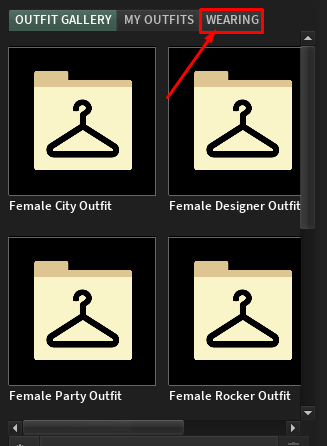
- Go to your bot's Outfits & click "Wearing"
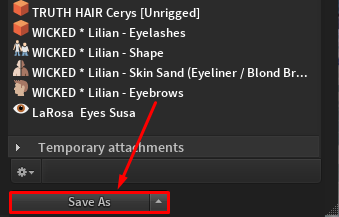
- Scroll down and save the outfit to a separate folder
- Repeat for every outfit you need


NOTE: If you do not want your bot to take off particular objects on each outfit change (such as: hair, underwear, tattoos, rings, etc) - We recommend to create separate folder and move these kind of items there.