
Security Bot configuration
|
QuincyJohnes (Talk | contribs)
|
QuincyJohnes (Talk | contribs)
|
||
| (9 intermediate revisions not shown) | |||
| Line 1: | Line 1: | ||
== Overview == |
== Overview == |
||
| - | + |
[[Security Bot (add-on)|Security Bot add-on]] allows your [[Personal Bots|Personal Bot]] to act as your parcel security. Below you will find all the instructions needed to configure the add-on.
|
|
| - | + |
'''IMPORTANT:''' Please be advised that in-order for the add-on to work, bot must be an '''Estate Manager''' or parcel must be '''Group Owned''' and bot must have group permissions. [[Security Bot group permissions|Read more here]]
|
|
| - | + | ||
| - | + | ||
| - | + | === Security Setup === |
|
| - | + |
In general, there are 3 types of security modes that you can enable. You can access this page by visiting your going over to Security Bot add-on and click '''Use ban lists'''
|
|
| - | + |
[[File:Security_Bot_security_modes_numbered_new.png|center|link=]]
|
|
| - | + | ||
| - | + | ||
| - | + | ||
| - | |||
| - | + | # '''Block all + allow in allowed list:''' Bot will not allow anyone to enter the parcel unless they're added on '''allowed lists''' (See '''Managing access lists''' below) |
|
| - | + |
# '''Allow all + block all in blocked list:''' Bot will allow everyone to enter except for those who are added on '''blocked list'''
|
|
| + | # '''Allow all:''' Fully disables the protection and bot will let anyone in |
||
| + |
# '''Parcel name:''' Bot will operate the add-on only in specified parcel. Useful to prevent bot spamming other locations. (Such as Info HUBs after Rolling Restarts)
|
||
| + | # '''Welcome message:''' Bot sends this IM to anyone who lands as a greeting. Can be left blank for no greeting. |
||
| + | # '''Warning delay:''' Defines the amount of time (seconds) before '''Warning message''' is sent after visitors arrival. |
||
| + | # '''Warning message:''' The text that bot sends to visitor as a warning. |
||
| + | # '''Kick delay:''' Defines the amount of time (seconds) before '''Kick message''' is sent after visitors arrival. |
||
| + |
# '''Kick message:''' The text that bot sends to visitor before kicking them. |
||
| - | + | == Managing access lists == |
|
| - | + | ||
| - | + | ||
| - | + | ||
| - | + | ||
| - | + | ||
| - | + | ||
| - | + | ||
| - | + | The access lists define who gets to skip the bot's security under '''Security Modes''' or fully workaround it. |
|
| - | + | * If a resident is added to '''blocked list''': Bot will immediately eject them from parcel. |
|
| + | * If a resident is added to '''allowed list''': Bot will let them enter on any conditions. |
||
| - | == |
+ | To add someone to either of the list: |
| + | # Visit your add-on page & click '''Edit access lists''' |
||
| + |
# Click '''Add resident''' under corresponding list [[File:Security_Bot_access_list_highlighted.png|center|border|600px|link=]]
|
||
| + |
# Enter SL name and click '''Add avatar'''[[File:Security_bot_access_lists_adding_resident.png|center|border|600px|link=]]
|
||
| - | + |
Optionally, from the left-side you can select any of the recent visitors name. |
|
| - | + | == Setting up access word == |
|
| - | + | ||
| - | + | ||
| - | + | ||
| - | + | ||
| - | + | ||
| - | + | ||
| - | + | ||
| - | + | ||
| - | + | '''Access word''' is a unique optional feature which acts as a password. If access word is given to bot via IMs, visitor will not get ejected. This is a useful feature to allow special guests in ''without adding them to Access lists'' |
|
| - | + | To setup an Access word: |
|
| + | # Visit the add-on's main page |
||
| + | # Click '''Access word''' |
||
| + | # Enter the special access word |
||
| - | + |
[[File:Security_Bot_access_word.png|center|border|600px|link=]]
|
|
| - | + |
You can also configure the effectiveness of the access word: |
|
| + | * You can set the expiration date of the access word (It will no longer be effective after it's expired) |
||
| + | * How long the access word will allow entry to a visitor |
||
| - | == |
+ | == Setting up spam protection == |
| - | + |
[[File:Security_Bot_spam_protection.png|center|border|600px|link=]]
|
|
| - | + |
'''Spam Protection''' is also one of the unique features to keep your parcel secure from unnecessary group invitations. If bot receives an invite - it will '''eject & blocklist''' the sender.
|
|
| - | # |
+ | |
| - | + |
To enable Spam Protection: |
|
| - | # |
+ | # Visit your add-on's main page
|
| - | + | # Click '''Spam Protection'''
|
|
| - | + |
# Enable the checkmark '''Kick and ban residents who try to invite bot''' |
|
| - | + | ||
| + | == Monitoring visitors live == |
||
| + | |||
| + |
Lastly, you can monitor the parcel visitors live. You can add them to '''Access lists''' directly from this page without entering their names.
|
||
| + | |||
| + | [[File:Security_Bot_visitor_monitoring.png|center|border|600px|link=]] |
||
| + | |||
| + | To visit Live Monitoring page: |
||
| + |
# Visit your add-on's main page
|
||
| + |
# Click '''Visitors today''' |
||
| - | |||
__NOTOC__ |
__NOTOC__ |
||
Latest revision as of 22:54, 4 October 2022
Overview
Security Bot add-on allows your Personal Bot to act as your parcel security. Below you will find all the instructions needed to configure the add-on.
IMPORTANT: Please be advised that in-order for the add-on to work, bot must be an Estate Manager or parcel must be Group Owned and bot must have group permissions. Read more here
Security Setup
In general, there are 3 types of security modes that you can enable. You can access this page by visiting your going over to Security Bot add-on and click Use ban lists
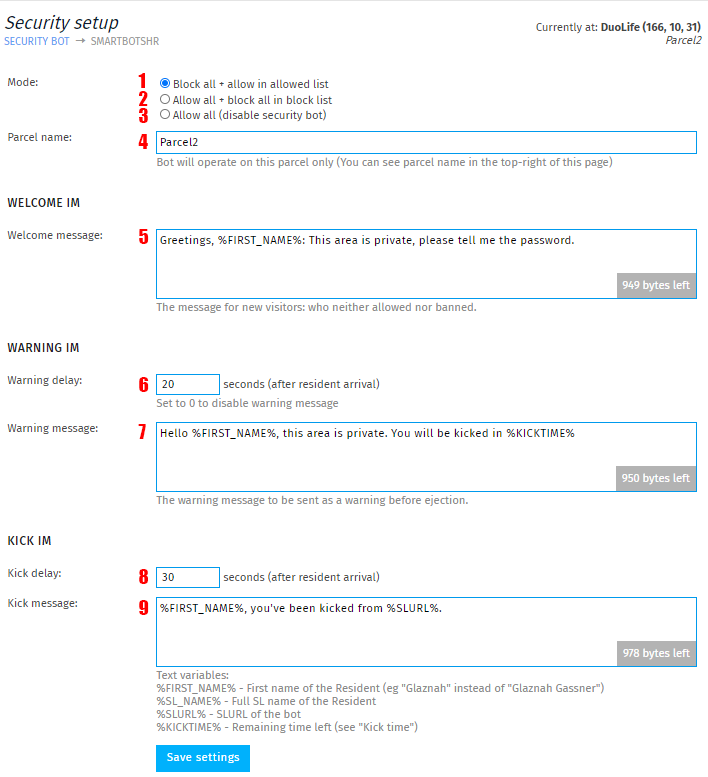
- Block all + allow in allowed list: Bot will not allow anyone to enter the parcel unless they're added on allowed lists (See Managing access lists below)
- Allow all + block all in blocked list: Bot will allow everyone to enter except for those who are added on blocked list
- Allow all: Fully disables the protection and bot will let anyone in
- Parcel name: Bot will operate the add-on only in specified parcel. Useful to prevent bot spamming other locations. (Such as Info HUBs after Rolling Restarts)
- Welcome message: Bot sends this IM to anyone who lands as a greeting. Can be left blank for no greeting.
- Warning delay: Defines the amount of time (seconds) before Warning message is sent after visitors arrival.
- Warning message: The text that bot sends to visitor as a warning.
- Kick delay: Defines the amount of time (seconds) before Kick message is sent after visitors arrival.
- Kick message: The text that bot sends to visitor before kicking them.
Managing access lists
The access lists define who gets to skip the bot's security under Security Modes or fully workaround it.
- If a resident is added to blocked list: Bot will immediately eject them from parcel.
- If a resident is added to allowed list: Bot will let them enter on any conditions.
To add someone to either of the list:
- Visit your add-on page & click Edit access lists
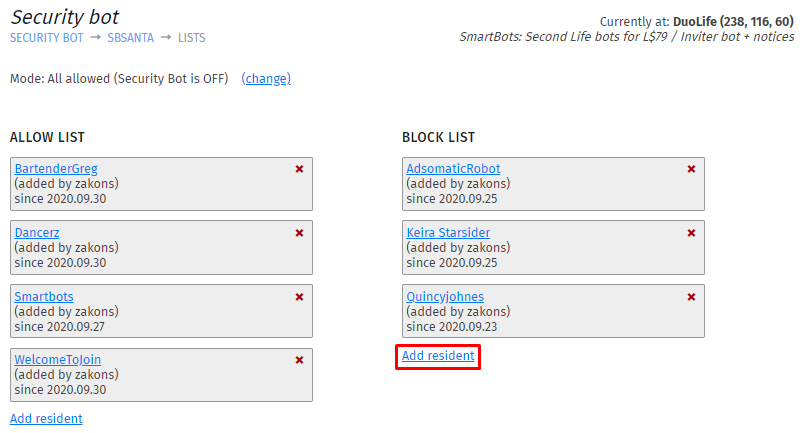
- Click Add resident under corresponding list
- Enter SL name and click Add avatar
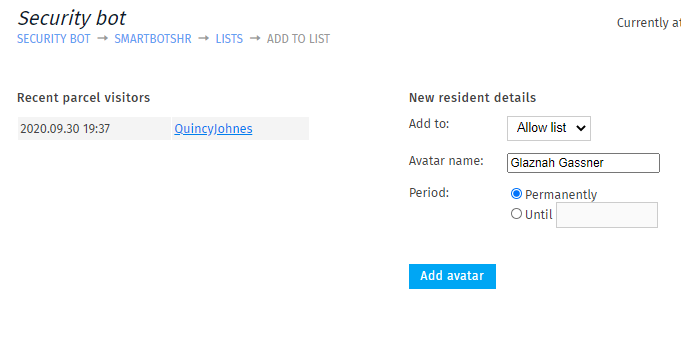
Optionally, from the left-side you can select any of the recent visitors name.
Setting up access word
Access word is a unique optional feature which acts as a password. If access word is given to bot via IMs, visitor will not get ejected. This is a useful feature to allow special guests in without adding them to Access lists
To setup an Access word:
- Visit the add-on's main page
- Click Access word
- Enter the special access word
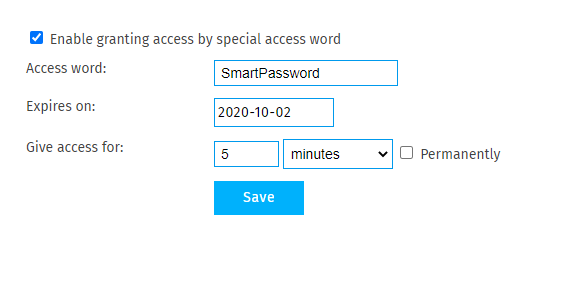
You can also configure the effectiveness of the access word:
- You can set the expiration date of the access word (It will no longer be effective after it's expired)
- How long the access word will allow entry to a visitor
Setting up spam protection
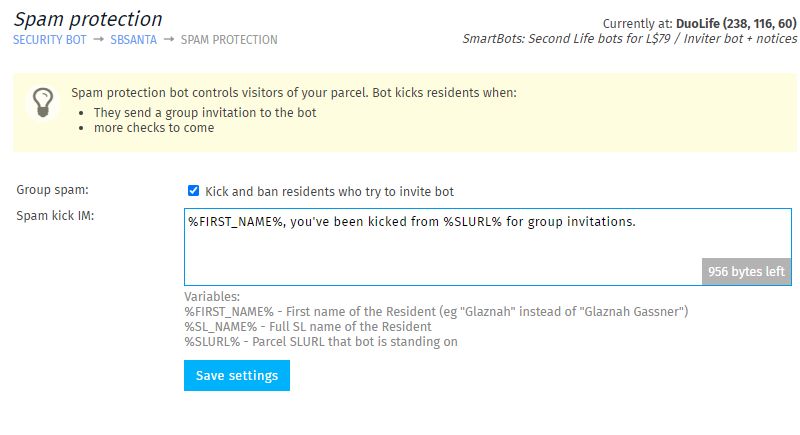
Spam Protection is also one of the unique features to keep your parcel secure from unnecessary group invitations. If bot receives an invite - it will eject & blocklist the sender.
To enable Spam Protection:
- Visit your add-on's main page
- Click Spam Protection
- Enable the checkmark Kick and ban residents who try to invite bot
Monitoring visitors live
Lastly, you can monitor the parcel visitors live. You can add them to Access lists directly from this page without entering their names.
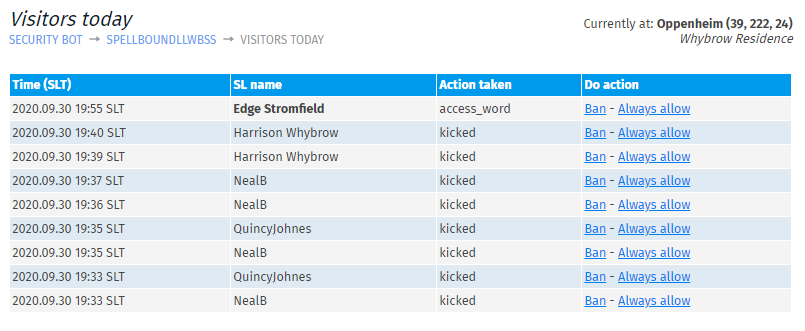
To visit Live Monitoring page:
- Visit your add-on's main page
- Click Visitors today