
Trusted Managers
|
QuincyJohnes (Talk | contribs)
|
|||
| (12 intermediate revisions not shown) | |||
| Line 1: | Line 1: | ||
| + | '''IMPORTANT NOTE''' |
||
| + | |||
| + | According to our Security Protocols, '''Trusted Manager's CANNOT BE ASSIGNED to more than one''' SmartBots account. This is not going to change in any foreseeable future. |
||
| + | |||
| + | ---- |
||
| + | |||
| + | |||
Sometimes it might be necessary to allow someone to manage your groups and/or bot. This might be a colleague, employee or friend. Therefore the "Trusted Managers" section has been provided to grant management permissions to other residents. |
Sometimes it might be necessary to allow someone to manage your groups and/or bot. This might be a colleague, employee or friend. Therefore the "Trusted Managers" section has been provided to grant management permissions to other residents. |
||
| Line 50: | Line 57: | ||
|- |
|- |
||
| - | | Bot |
+ | | Bot add-ons
|
| - | | * Access your |
+ | | * Access your add-ons (see [http://www.mysmartbots.com/store/ Bot Store]). |
| - | You specify which |
+ | You specify which add-ons are available for manager |
|} |
|} |
||
| - | == |
+ | == '''Adding and changing managers''' == |
| - | + |
[[image:Trusted_Managers_1.png|link=|center]]
|
|
| - | |||
| - | |||
| - | |||
| - | |||
| - | + | == '''Accessing manager account''' == |
|
| - | + | ||
| - | + | ||
| - | + | ||
| - | + | ||
| - | + | ||
| - | + | ||
| - | + | ||
| - | + | ||
| - | + | ||
| - | + | ||
| - | + | ||
| - | + | ||
| - | + | ||
| - | + | ||
| - | + | ||
| - | + | ||
| - | + | ||
| - | + | ||
| - | + | ||
| - | + | ||
| - | + | ||
| - | + | ||
| - | + | ||
| - | + | ||
| - | + | ||
| - | + |
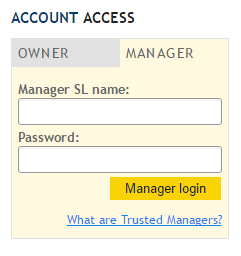
Trusted Managers can access their accounts from [http://www.mysmartbots.com main web-page] with the login and password created and given by account owner. (Account owners can also change/modify managers passwords at anytime)
|
|
| - | + | ||
| - | + |
[[Image:Managers_Login.png|border|center|link=]] |
|
| - | |||
| - | == ''' |
+ | == '''Accessing bot add-ons''' == |
| - | + | ||
| - | Your |
+ | Your managers are also able to control your [http://www.mysmartbots.com/docs/Bot_Add-Ons bot add-ons] (The add-ons of your bots) you can allow your managers to gain access over your add-ons by navigating to your Trusted Managers section in your account and upon creating or modifying the access of manager - Click on "Allow add-ons"
|
| - | + |
Currently, there are the following add-ons available for Trusted Managers to control:
|
|
| + | # [http://www.mysmartbots.com/docs/Alive_Support_Bot Alive Support Bot] |
||
| + | # [http://www.mysmartbots.com/docs/Bot_Local_Chat_(Add-On) Bot Local Chat] |
||
| + | # [http://www.mysmartbots.com/docs/Simple_Autoresponder_(Add-On) Simple IM Autoresponder] |
||
| + | # [http://www.mysmartbots.com/docs/Bot_Live_Chat Live IM Chat] |
||
| - | |||
| - | |||
| + | __NOTOC__ |
||
[[Category: Existing customers]] |
[[Category: Existing customers]] |
||
Latest revision as of 21:50, 29 March 2024
IMPORTANT NOTE
According to our Security Protocols, Trusted Manager's CANNOT BE ASSIGNED to more than one SmartBots account. This is not going to change in any foreseeable future.
Sometimes it might be necessary to allow someone to manage your groups and/or bot. This might be a colleague, employee or friend. Therefore the "Trusted Managers" section has been provided to grant management permissions to other residents.
Your "Trusted Manager" can have access to your groups and/or bots (read the instructions below to know more).
Manager abilities
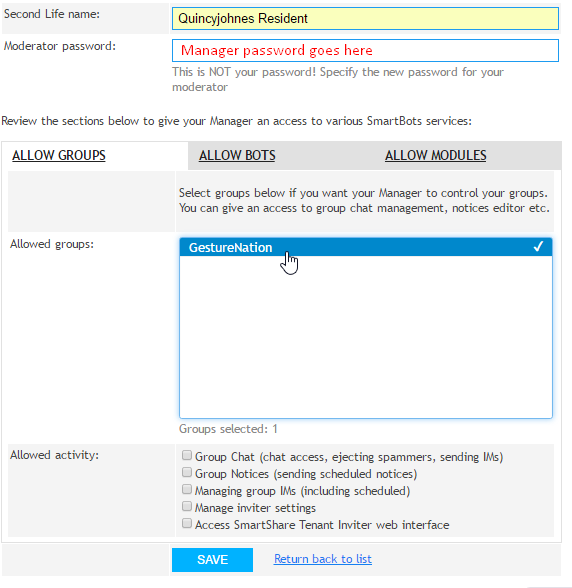
You can assign any set of abilities to each of your manager:
| Service | Manager abilities |
|---|---|
| Group Inviter |
You specify the groups available to each manager. |
| Group Chat |
You specify the groups available to each manager. |
| Group Notices |
You specify the groups available to each manager. |
| Personal bots |
You specify the bots each manager can control. |
| Bot add-ons | * Access your add-ons (see Bot Store).
You specify which add-ons are available for manager |
Adding and changing managers
Accessing manager account
Trusted Managers can access their accounts from main web-page with the login and password created and given by account owner. (Account owners can also change/modify managers passwords at anytime)
Accessing bot add-ons
Your managers are also able to control your bot add-ons (The add-ons of your bots) you can allow your managers to gain access over your add-ons by navigating to your Trusted Managers section in your account and upon creating or modifying the access of manager - Click on "Allow add-ons"
Currently, there are the following add-ons available for Trusted Managers to control: