
Group Manager
QuincyJohnes (Talk | contribs)
(Created page with "== Overview == The Group Manager is a sub-feature of the [https://www.mysmartbots.com/docs/Personal_Bot_Control_Panel Personal Bot Control Panel] that allows you to manage the ...")
Newer edit →
(Created page with "== Overview == The Group Manager is a sub-feature of the [https://www.mysmartbots.com/docs/Personal_Bot_Control_Panel Personal Bot Control Panel] that allows you to manage the ...")
Newer edit →
Revision as of 13:00, 29 December 2025
Contents |
Overview
The Group Manager is a sub-feature of the Personal Bot Control Panel that allows you to manage the groups your bot is part of.
With Group Manager, you can:
- View all groups your bot is currently a member of
- Activate or deactivate group tags
- Switch between available group tags and roles
- Review group roles and permissions
- Make your bot leave a group
Below are step-by-step instructions for each action.
Browsing Groups
To view your bot’s current groups:
- Visit the Bot Control Panel
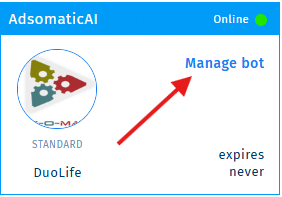
- Click Manage Bot
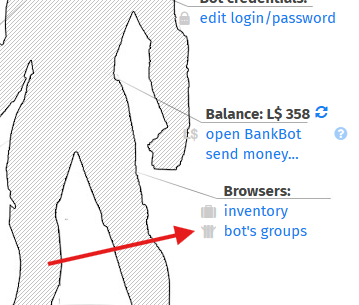
- Select Bot’s Groups
Activating Group Tags
To activate a group tag for your bot:
- Locate the group you want
- Click the Activate button
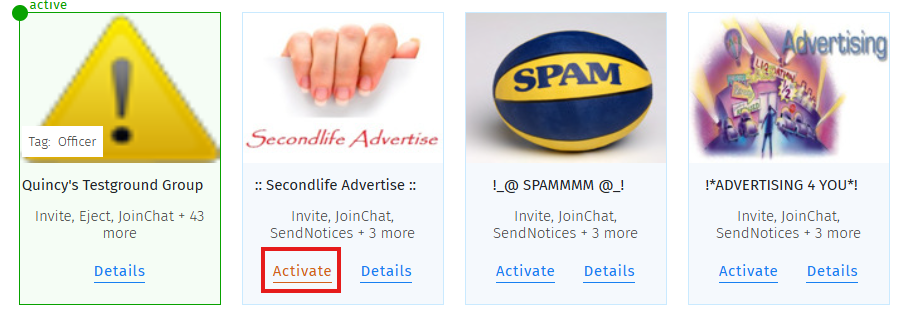
Once activated, the group tag will be displayed above your bot's head in Second Life.
Switching Between Group Tags
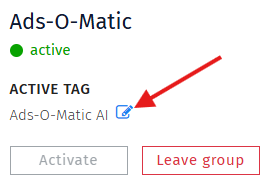
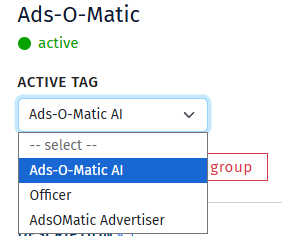
If your bot has multiple roles within a group, you can change between available tags:
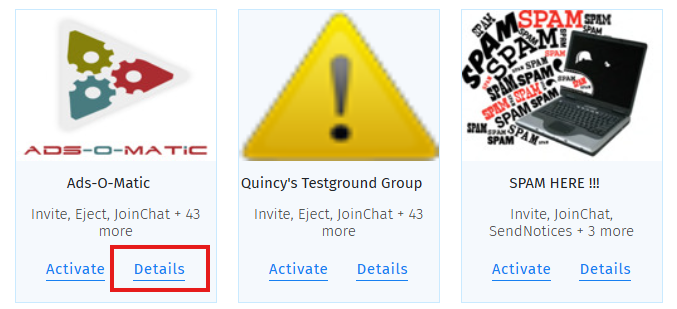
- Click Details on the desired group
- Click the Edit icon next to the current group tag
- Select a different available group tag
Viewing Group Roles & Permissions
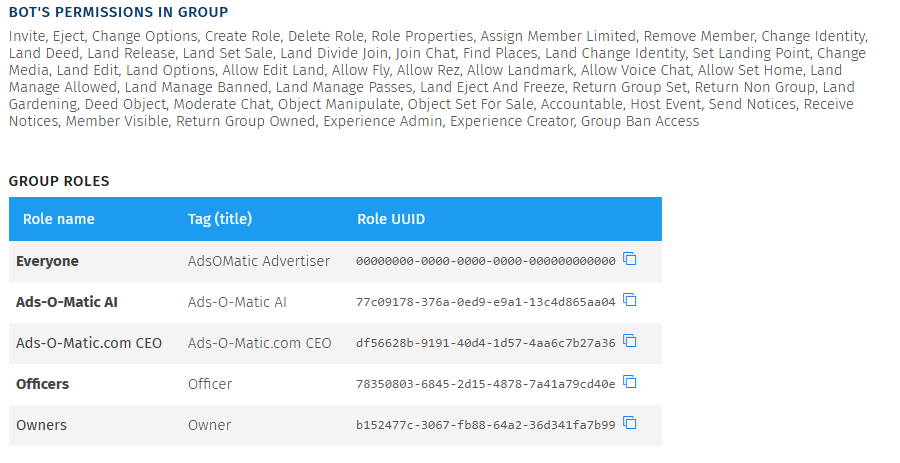
Scroll down within the group information page to view:
- The defined roles within the group
- Your bot’s current permissions
Leaving a Group
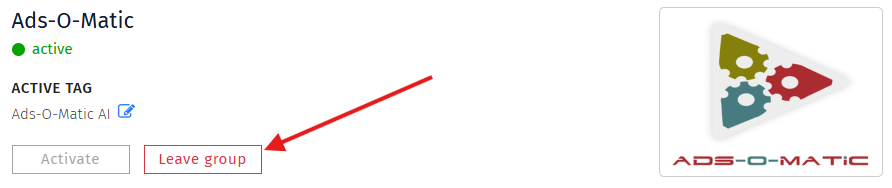
To remove your bot from a group:
- Navigate to the group’s information page
- Click Leave Group at the top
_NOTOC_