
Personal Bot HUD
SmartBots Personal Bot HUD allows you to remotely control your Second Life bot.
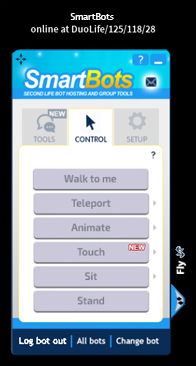
- header buttons,
- function tabs,
- bot status buttons,
- bot movement control panel.
HUD Header Buttons
HUD header buttons allows you to (from left to right):
- drag your HUD on the screen with your mouse
- open the Bot Live Chat window (displayed if there is a new message)
- display help
- minimize your HUD (click the HUD to restore it)
HUD footer buttons allows you to:
- logout current bot
- send a login/logout/teleport/rebake command to ALL your bots
- choose a bot to control
Tab: Tools
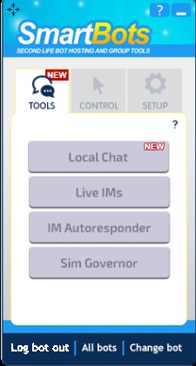
The "Tools" tab contains commands to navigate to certain add-ons:
- Local Chat - Navigates to main page of Local Chat add-on
- Live IMs - Opens your bot's Live IMs add-on
- IM Autoresponder - Navigates to Simple IM Autoresponder add-on
- Sim Governor - Navigates to Sim Governor add-on
IMPORTANT: In-order to open the following pages, you need to have the following add-ons purchased from our add-on store
Tab: Control
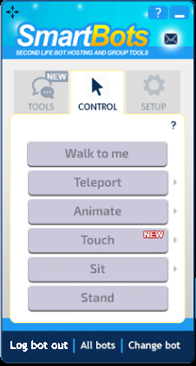
The "Control" tab contains commands to teleport, move and animate your bot:
- Walk to me - moves bot to you if you're on same sim
- Teleport - teleports bot to you or you to the bot
- Animate - play/stop previously loaded animations from bot's inventory
- Touch - bot touches the objects using Object UUID
- Sit - sit on Bot Pose Stand or selected in-world object
- Stand - make the bot stand up if sitting on an object
Tab: Setup
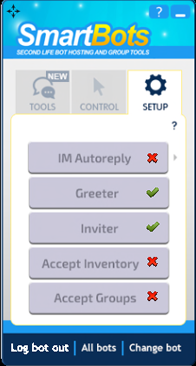
The "Setup" tab contains commands to setup a bot's behavior:
- IM Autoreply - toggle bot's IM autoresponder (allows using custom PandoraBot chatbot)
- Greeter - toggle greeter feature for this bot
- Inviter - toggle group inviter for this bot
- Accept inventory - toggle inventory acceptance (from other residents)
- Accept groups - toggle group invitation acceptance
Movement panel
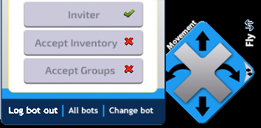
The movement panel allows to remotely control your bot by pressing arrows. It also contains a "fly" button which when presses toggles flight mode on or off. Normal movement buttons allow the bot to move forward and backward or rotate clockwise or counter-clockwise in the air. The panel can be hidden and shown at any time.
How To Get the HUD
There are two ways to get the SmartBots HUD:
- Login to your SmartBots account and click "Your personal bots" menu.Choose "Bot control tools" and deliver HUD to your avatar.
- Visit SmartBots in-world office and click on the "Devices container" for pop-up menu. Choose "Bot HUD" from the menu.