
Personal Bot HUD
| Line 1: | Line 1: | ||
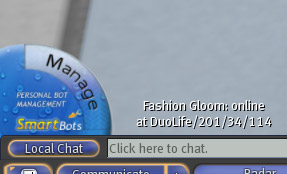
SmartBots/XS HUD allows to remotely control your bot. The HUD is driven by viewer pop-up menu. |
SmartBots/XS HUD allows to remotely control your bot. The HUD is driven by viewer pop-up menu. |
||
| + | |||
| + | [[Image:Hud_screen_view.jpg|center|link=|border]] |
||
[[Image:Hud view.jpg|center|link=|border]] |
[[Image:Hud view.jpg|center|link=|border]] |
||
Revision as of 13:04, 22 April 2011
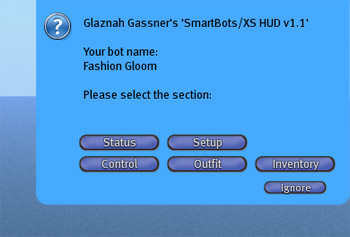
SmartBots/XS HUD allows to remotely control your bot. The HUD is driven by viewer pop-up menu.
Setup Menu
First of all, you have to set the bot name you wish to control. To do that, click Setup => Set bot and choose the bot from the list.
Other setup menu items:
- Inviter +/1 - turn the automatic group inviter on/off
- Greeter +/1 - turn the visitor IM greeter on/off
- Login - login the bot to Second Life
- Logout - logout the bot. This is useful if you want to use SL viewer to change the bot's appearance.
- IM Autoreply - configure the bot's IM autoresponder.
Control Menu
This menu allows to control your bot location and movement:
- Sit - sit onto the specific object. Right-click to select the object to sit (for example, the the Bot Pose Stand)
- Stand - click to stand up the bot
- Teleport - ask bot to teleport to your location. You can also offer the teleport to the bot.
- Animate - make the bot play animation from the inventory
- Stop anim. - stop the specific animation
- Follow - call bot to follow you.
Inventory Menu
This menu allows to quickly manage the bot's inventory:
- Upload inv. - drop the inventory item to the bot to use it.
- Delete - delete the uploaded inventory item.