
Personal Bot HUD
| Line 1: | Line 1: | ||
| - | SmartBots |
+ |
[[Image:Smartbots-hud-v2-overview.jpg|right|link=]]SmartBots Personal Bot HUD allows to remotely control your Second Life bot. |
| - | + |
HUD consists of the header buttons, tabs and bot status buttons. |
|
| - | + | ||
| - | == |
+ | == HUD Header Buttons == |
| - | + |
HUD header buttons allow to (from left to right):
|
|
| + |
* drag your HUD on the screen with your mouse
|
||
| + | * call a brief help |
||
| + |
* fold your HUD (to unfold it, click the HUD)
|
||
| - | + | <div class="clearBoth"></div> |
|
| - | + |
== Tab: Items ==
|
|
| - | + |
[[Image:Smartbots-hud-v2-items.jpg|right|link=]]
|
|
| - | + |
The "Items" tab contains commands to control the bot's inventory:
|
|
| - | + | ||
| - | + | ||
| - | + | * Read Me! - gives a notecard instructions about outfits |
|
| + | * Upload inventory - get a notecard about uploading inventory |
||
| + | * Delete inventory - delete one of the uploaded inventory items/folders |
||
| + | * Rebake - rebakes bot textures if appearance is broken |
||
| + | * Wear - use uploaded folder to wear |
||
| - | + | == Tab: Control == |
|
| + |
The "Control" tab contains commands to teleport, move and animate your bot: |
||
| - | * |
+ | * Come to me - moves bot to you if you're on same sim
|
| - | + | * Teleport - teleports bot to you or you to the bot |
|
| - | * Teleport - |
+ | * Animate - choose animation from inventory and play it
|
| - | * Animate - |
+ | * Stop animation - stop one of animations
|
| - | * Stop |
+ | * Sit - sit on SmartBots PoseStand or selected in-world object
|
| - | * |
+ |
* Stand - stand up the bot |
| - | |||
| - | |||
| - | |||
| - | |||
| - | |||
| - | |||
[[Category: Personal bots]] |
[[Category: Personal bots]] |
||
Revision as of 13:06, 22 October 2011
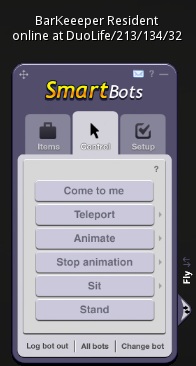
HUD consists of the header buttons, tabs and bot status buttons.
HUD Header Buttons
HUD header buttons allow to (from left to right):
- drag your HUD on the screen with your mouse
- call a brief help
- fold your HUD (to unfold it, click the HUD)
Tab: Items
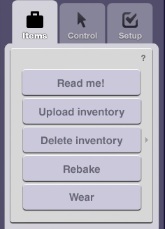
The "Items" tab contains commands to control the bot's inventory:
- Read Me! - gives a notecard instructions about outfits
- Upload inventory - get a notecard about uploading inventory
- Delete inventory - delete one of the uploaded inventory items/folders
- Rebake - rebakes bot textures if appearance is broken
- Wear - use uploaded folder to wear
Tab: Control
The "Control" tab contains commands to teleport, move and animate your bot:
- Come to me - moves bot to you if you're on same sim
- Teleport - teleports bot to you or you to the bot
- Animate - choose animation from inventory and play it
- Stop animation - stop one of animations
- Sit - sit on SmartBots PoseStand or selected in-world object
- Stand - stand up the bot