
Sit Second Life bot on selected object
|
QuincyJohnes (Talk | contribs)
(→Sitting bot using Personal bot Control Panel)
|
|||
| (10 intermediate revisions not shown) | |||
| Line 1: | Line 1: | ||
| - | [[SmartBots Personal Bot HUD]] allows to |
+ | [[SmartBots Personal Bot HUD]] allows you to command your bot to sit on a nearby SmartBots PoseStand or any other object. |
| - | + |
On the control tab of the HUD click "Sit" to receive the following menu: |
|
| - | [[Image: |
+ | [[Image:Bot_Sit2.png|center|border|link=]] |
| - | + |
The menu displays a list of [[Bot_Pose_Stand|Personal Bot Pose Stands]] near to the bot. You can choose one or you can make the bot sit on a pose ball, chair or object. |
|
== Sitting on selected object == |
== Sitting on selected object == |
||
| - | You can command bot to sit on |
+ | You can also command the bot to sit on any suitable object;
|
| - | # |
+ | # On the control tab click "sit" to open the sit menu |
| - | # |
+ | # Highlight the required object inworld (right-clicking and selecting "Edit"):[[Image:SitBot1.png|center|border|link=]]
|
| - | # |
+ | # Choose "Object.." option from the menu
|
| - | + | ||
The bot will try to sit on the object you've just highlighted. |
The bot will try to sit on the object you've just highlighted. |
||
| - | + |
* '''''Optionally: you can click "Enter UUID" option to sit your bot using object UUID'''''
|
|
| + | [[Image:Bot_Sit3.png|center|border|link=]] |
||
| + | |||
| + | |||
| + | |||
| + | === Important notice re selection beam === |
||
| + | |||
| + | Bot uses your avatar's selection beam to determine the selected object. |
||
| + | |||
| + |
In some viewers this feature works only if "Don't send my selection target hints" option is '''unchecked''' (so your selection beam needs to be visible anyone, including the bot). |
||
| + | |||
| + | == Sitting bot using Personal bot Control Panel == |
||
| + | |||
| + | With SmartBots it is also possible to tell your bot which object to sit on using it's UUID in the [[Personal Bot Control Panel]]. Simply access your personal bots control panel and on the left leg select "sitting on" and place the objects UUID: [[Image:New_UUID.png|center|border|link=]] |
||
| + | |||
| + | === How to get an object's UUID === |
||
| + | |||
| + | To get an objects UUID using the firestorm viewer: |
||
| + | # Right click on the object and select edit |
||
| + | # Select copy key from the edit menu |
||
| + | |||
| + | To get an object's UUID using a simple script: |
||
| + | # Copy and paste the following into a blank script and place it in the object. |
||
| + | # Touch the object to receive the UUID. |
||
| + | |||
| + | <syntaxhighlight> |
||
| + | default { |
||
| + | touch_start(integer x) { |
||
| + | llOwnerSay(llGetKey()); |
||
| + | } |
||
| + | } |
||
| + | </syntaxhighlight> |
||
== Sim restarts & Bot relogs == |
== Sim restarts & Bot relogs == |
||
| - | When you |
+ | When you command the bot to sit on an object, it remembers it. The bot will return to the original location on a sim restart and sit on the previous object.
|
| + | |||
| + |
Just make sure you don't remove the object. |
||
[[Category: Existing customers]] |
[[Category: Existing customers]] |
||
| - | [[Category: |
+ | [[Category: Personal bots]] |
| + | |||
| + | __NOTOC__ |
||
Latest revision as of 20:59, 18 January 2019
SmartBots Personal Bot HUD allows you to command your bot to sit on a nearby SmartBots PoseStand or any other object.
On the control tab of the HUD click "Sit" to receive the following menu:
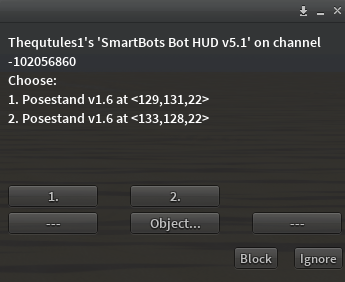
The menu displays a list of Personal Bot Pose Stands near to the bot. You can choose one or you can make the bot sit on a pose ball, chair or object.
Sitting on selected object
You can also command the bot to sit on any suitable object;
- On the control tab click "sit" to open the sit menu
- Highlight the required object inworld (right-clicking and selecting "Edit"):
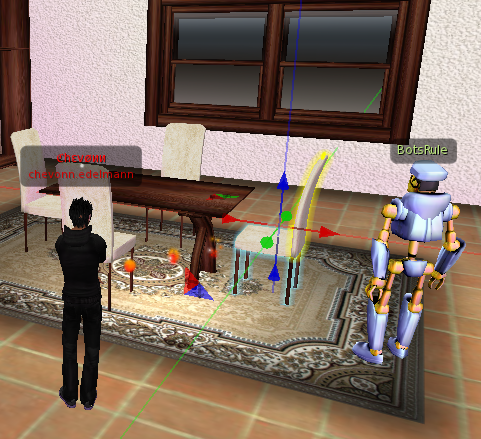
- Choose "Object.." option from the menu
The bot will try to sit on the object you've just highlighted.
- Optionally: you can click "Enter UUID" option to sit your bot using object UUID
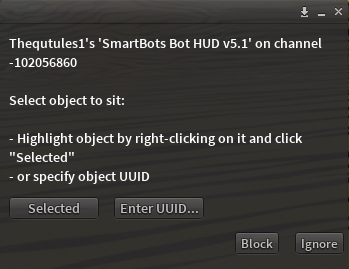
Important notice re selection beam
Bot uses your avatar's selection beam to determine the selected object.
In some viewers this feature works only if "Don't send my selection target hints" option is unchecked (so your selection beam needs to be visible anyone, including the bot).
Sitting bot using Personal bot Control Panel
With SmartBots it is also possible to tell your bot which object to sit on using it's UUID in the Personal Bot Control Panel. Simply access your personal bots control panel and on the left leg select "sitting on" and place the objects UUID: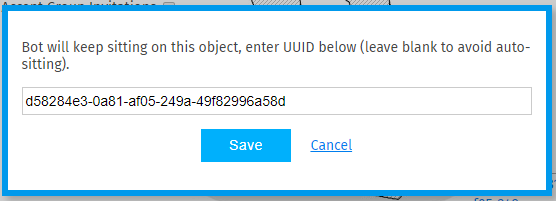
How to get an object's UUID
To get an objects UUID using the firestorm viewer:
- Right click on the object and select edit
- Select copy key from the edit menu
To get an object's UUID using a simple script:
- Copy and paste the following into a blank script and place it in the object.
- Touch the object to receive the UUID.
Invalid language.
You need to specify a language like this: <source lang="html4strict">...</source>
Supported languages for syntax highlighting:
4cs, 6502acme, 6502kickass, 6502tasm, 68000devpac, abap, actionscript, actionscript3, ada, algol68, apache, applescript, apt_sources, asm, asp, autoconf, autohotkey, autoit, avisynth, awk, bash, basic4gl, bf, bibtex, blitzbasic, bnf, boo, c, c_mac, caddcl, cadlisp, cfdg, cfm, chaiscript, cil, clojure, cmake, cobol, cpp, cpp-qt, csharp, css, cuesheet, d, dcs, delphi, diff, div, dos, dot, e, ecmascript, eiffel, email, erlang, f1, fo, fortran, freebasic, fsharp, gambas, gdb, genero, genie, gettext, glsl, gml, gnuplot, go, groovy, gwbasic, haskell, hicest, hq9plus, html4strict, http, icon, idl, ini, inno, intercal, io, j, java, java5, javascript, jquery, kixtart, klonec, klonecpp, latex, lb, lisp, locobasic, logtalk, lolcode, lotusformulas, lotusscript, lscript, lsl, lsl2, lua, m68k, magiksf, make, mapbasic, matlab, mirc, mmix, modula2, modula3, mpasm, mxml, mysql, newlisp, nsis, oberon2, objc, objeck, ocaml, ocaml-brief, oobas, oracle11, oracle8, oxygene, oz, pascal, pcre, per, perl, perl6, pf, php, php-brief, pic16, pike, pixelbender, plsql, postgresql, povray, powerbuilder, powershell, progress, prolog, properties, providex, purebasic, python, q, qbasic, rails, rebol, reg, robots, rpmspec, rsplus, ruby, sas, sbsl, scala, scheme, scilab, sdlbasic, smalltalk, smarty, sql, systemverilog, tcl, teraterm, text, thinbasic, tsql, typoscript, unicon, vala, vb, vbnet, verilog, vhdl, vim, visualfoxpro, visualprolog, whitespace, whois, winbatch, xbasic, xml, xorg_conf, xpp, z80, zxbasic
Sim restarts & Bot relogs
When you command the bot to sit on an object, it remembers it. The bot will return to the original location on a sim restart and sit on the previous object.
Just make sure you don't remove the object.