
Personal Bot Inventory Browser
| Line 22: | Line 22: | ||
#Allows you to view and change the selected item's permission. |
#Allows you to view and change the selected item's permission. |
||
#A selected item will have a yellow back ground. It will also show the item type (object,landmark etc) as well as its UUID |
#A selected item will have a yellow back ground. It will also show the item type (object,landmark etc) as well as its UUID |
||
| + | #Deletes the item from the bots inventory permanently (item does not go to "Trash" folder). |
||
Objects are synced with our servers automatically as long as the bot is online. |
Objects are synced with our servers automatically as long as the bot is online. |
||
[[Category: Personal bots]] |
[[Category: Personal bots]] |
||
Revision as of 11:37, 3 September 2013
With the new personal bot inventory browser you can now manage your bots inventory without logging into it manually. You can now:
- Quickly switch between folders;
- Easily dress or undress your bot;
- And you can also change the permissions on items.
Accessing inventory browser
To access inventory browser, open your Personal Bot Control Panel, then click "view inventory" link.
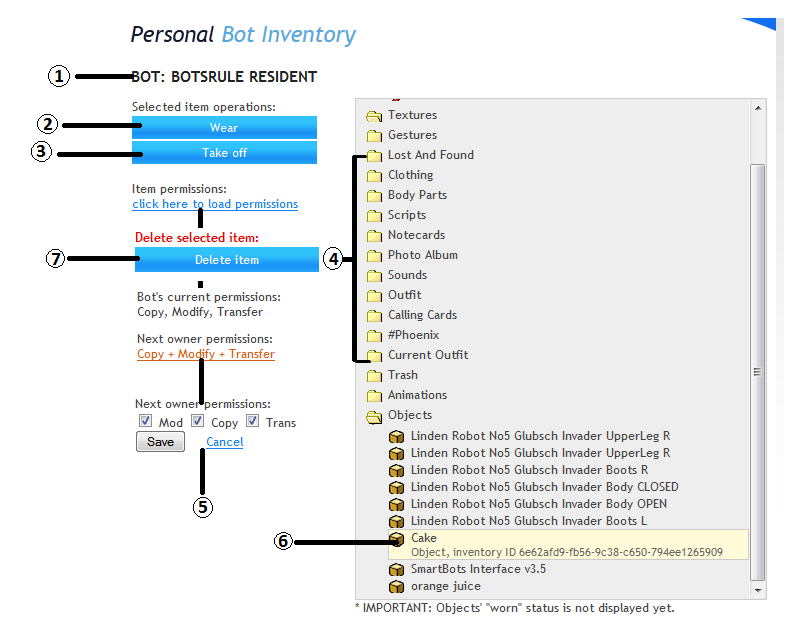
As you can see above all of the your bot`s folders and objects are neatly displayed so you can easily manage them.
Features
Below is a list of the features provided:
- Shows Personal Bot's name
- Clicking this will make the bot wear the selected item
- Makes the bot take off the selected item
- Shows the list of folders available. Clicking the folder opens it.
- Allows you to view and change the selected item's permission.
- A selected item will have a yellow back ground. It will also show the item type (object,landmark etc) as well as its UUID
- Deletes the item from the bots inventory permanently (item does not go to "Trash" folder).
Objects are synced with our servers automatically as long as the bot is online.