
Personal Bot Control Panel
The control panel is simple, intuitive and friendly tool to manage your personal bot. All functions are comfortably located in one place, and we shall show how easy it is to manage bot using the control panel from your browser.
About Personal Bot Control Panel
First, login to your account at http://www.mysmartbots.com.
Next, in the left menu, click "Your personal bots" and then "manage bot":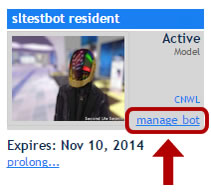
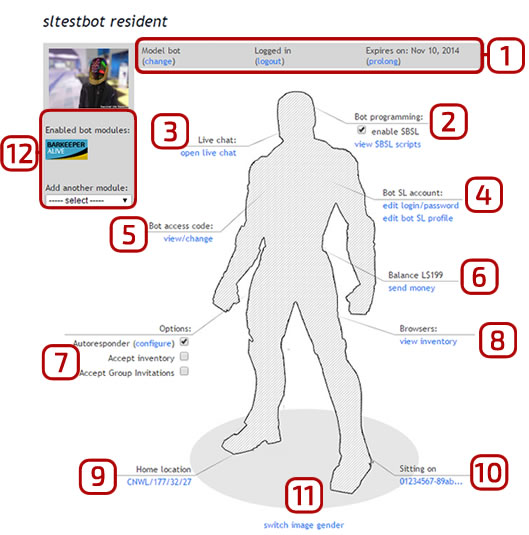
Description of the features:
1. Here is the basic information about your bot such as: bot type(standard or model), log in your bot in-world or not, and when the subscription expires.
2. «Brain” - SBSL bot programming. There you can see list below shows the scripts assigned to your bot.
3. “Mouth” - Bot_Live_Chat. After clicking the button, you can go to the web interface which allows receiving and sending Instant Messages using your personal bot.
4. “Heart”, where you can edit your login/password quickly.
5. “Hand” needed to set up the Bot_access_code, using for protect your bot and for applying SmartBots API functions and devices to control your personal bot.
6. “Wallet” - a new option for bots, made for the transfer of funds to other users. How does it work? It is very simple. First you pass the necessary amount to a bot and then, without going to the client Second Life, by pressing the "send money" button, you can transfer the desired amount to any user, they will be debited from your bot. The remaining amount in the wallet you will see after renew page over the"send money" button: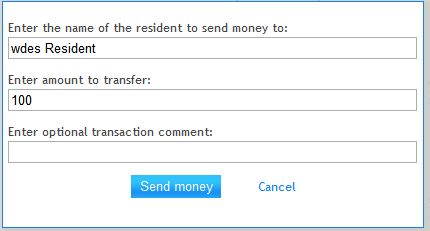
7. Options. Here you can enable or disable the settings, such as: AI Auto-responder, accepting inventory, accepting group invitations.
8. Bot Inventory. Just shows the bot`s inventory.
9. “Right leg” shows bot`s home location where you can set its manually, for example such as: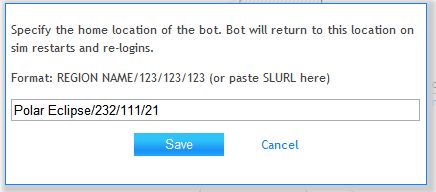
Thats all! Its very simple and easy.