
Setting up bot for invitations (SLV)
| Line 27: | Line 27: | ||
<div class=clearBoth></div> |
<div class=clearBoth></div> |
||
| - | == 2. Add bot to the role == |
+ | == 2. Add bot to the "SmartBots" role == |
Now let's add your bot to the new '''SmartBots''' role. |
Now let's add your bot to the new '''SmartBots''' role. |
||
Revision as of 15:39, 1 December 2010
To send direct group invites you have to give abilities to the bot. It's easy if you're experienced, otherwise you can follow our instructions below.
We will do the following actions:
- Create the "SmartBots" role in your group, with invitation abilities.
- Add your bot to this role.
(We assume that bot is already in your group. If not yet, click here)
1. Create new role
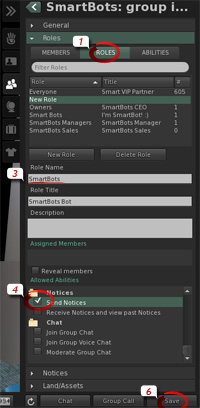
We recommend creating a separate role named SmartBots.
Open your group details and proceed with the following steps:
- Open Roles section, Roles tab.
- Click on New Role.
- Enter the Role Name "SmartBots", Role Title "SmartBots Bot"
- Important: check the Invite People to this Group ability.
- Click Save button.
2. Add bot to the "SmartBots" role
Now let's add your bot to the new SmartBots role.
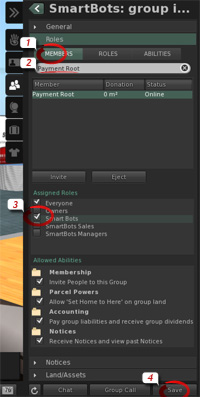
- Switch to Members tab.
- Type the bot's name to locate it.
- Check the "SmartBots" role under Assigned Roles.
- Click on Save.
Setup is complete, and your bot is able to send group invitations now.
Need more help?
If you experience any troubles, contact our manager in-world. He will guide you through setup process.