
Personal Bot Control Panel
|
QuincyJohnes (Talk | contribs)
|
QuincyJohnes (Talk | contribs)
|
||
| Line 33: | Line 33: | ||
=== 6. Bot SL account === |
=== 6. Bot SL account === |
||
| - | Here you can quickly edit your login/password or change your |
+ | Here you can quickly edit your bot's login/password or change your bot's SL profile ([[Personal Bot Profile|read more here]]). |
=== 7. Options === |
=== 7. Options === |
||
| Line 50: | Line 50: | ||
Set home location of bot manually, by using region coordinates. (Changes automatically by using "Teleport" function of [[Personal_Bot_HUD|Bot HUD]]) |
Set home location of bot manually, by using region coordinates. (Changes automatically by using "Teleport" function of [[Personal_Bot_HUD|Bot HUD]]) |
||
* Your bot can login to last location, or home location after relog. (Drop-down menu) |
* Your bot can login to last location, or home location after relog. (Drop-down menu) |
||
| - | * '''Always return to base:''' Your bot will |
+ | * '''Always return to base:''' Your bot will return to it's home location, even if "last location" is selected |
* '''Multi-sim support:''' Allows your bot to cross region borders (currently beta-function) |
* '''Multi-sim support:''' Allows your bot to cross region borders (currently beta-function) |
||
Revision as of 14:06, 13 January 2017
Bot control panel is a simple, intuitive and friendly tool used to manage your personal bot. All settings are located in one place.
Accessing Personal Bot Control Panel
- Login to your account at https://www.mysmartbots.com.
- In the menu on the left, click "Your personal bots"
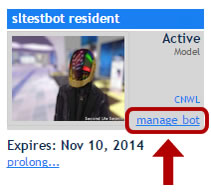
- Locate bot and click "manage bot":

1. Basic Information
Displays your bot's online/offline status, expiration date with option to prolong your bot and an option to change your bot type.
2. Bot modules
Your bot's current add-ons and menu to attach more. Read more about how to purchase and manage bot modules here.
3. Live Chat
After clicking on this button, you will be forwarded to the web interface which allows you to view and respond to Instant Messages received by the bot. You'll need LiveIMs module for this.
4. SBSL
SBSL bot programming. Here you can see a list of scripts located on your bot. You can also add a new script. SBSL must be enabled for Alive Bots to work.
5. Security
Allows you to setup your Bot access code for protecting your bot and applying SmartBots API functions or allowing third-party services to control your personal bot.
6. Bot SL account
Here you can quickly edit your bot's login/password or change your bot's SL profile (read more here).
7. Options
Еnable or disable various settings: AI Auto-responder, accepting inventory and group invitations.
8. Balance L$
Allows sending L$ from bot's balance without logging into your bot using a viewer.
9. Bot Inventory
Opens your bots SL inventory
10. Bot base location
Set home location of bot manually, by using region coordinates. (Changes automatically by using "Teleport" function of Bot HUD)
- Your bot can login to last location, or home location after relog. (Drop-down menu)
- Always return to base: Your bot will return to it's home location, even if "last location" is selected
- Multi-sim support: Allows your bot to cross region borders (currently beta-function)
11. Object to sit
Set an object for your bot to sit on using the object UUID/Key. More information here
12. Switch image gender
Switches bot image according to it's gender (Male/Female)