
Sim Governor Region Setup
Overview
Before you can manage a Second Life region using Sim Governor, you must configure your Personal Bot with the necessary estate permissions and add the region to the Add-On.
Assigning Estate Manager Permissions
Your Personal Bot must be assigned as an Estate Manager to perform region administration tasks.
To assign the necessary permissions:
Log in to Second Life using an account authorized to manage the estate.
Open the Region/Estate management window in your viewer.
Locate the Estate Managers section.
Add your Personal Bot as an Estate Manager.
Repeat this process for each estate you intend to manage using Sim Governor.
Accessing Sim Governor
Log in to your Account Dashboard.
Expand Bot Add-ons in the left-hand navigation menu.
Select Sim Governor.
The Summary page displays all Personal Bots configured with the Sim Governor Add-On.
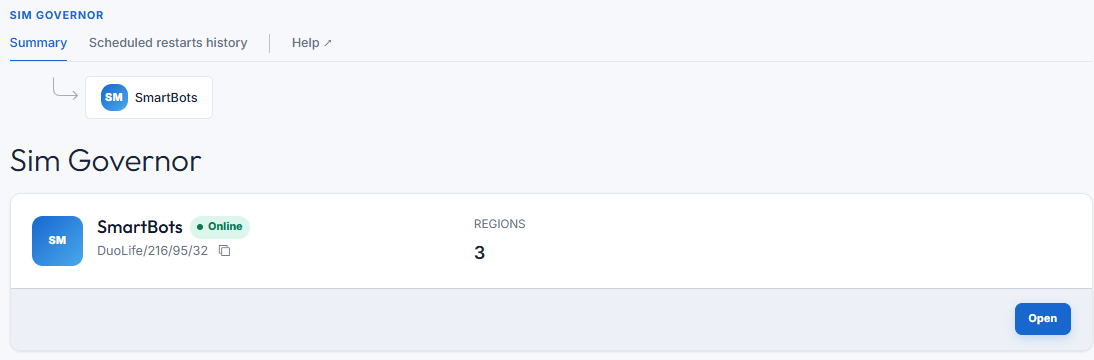
For each bot, you can view its:
Name and profile picture.
Online or offline status.
Current Second Life location.
Number of configured regions.
Click Open next to the bot you want to configure.
Adding a Region
The selected bot's management page displays all regions currently configured for that bot.
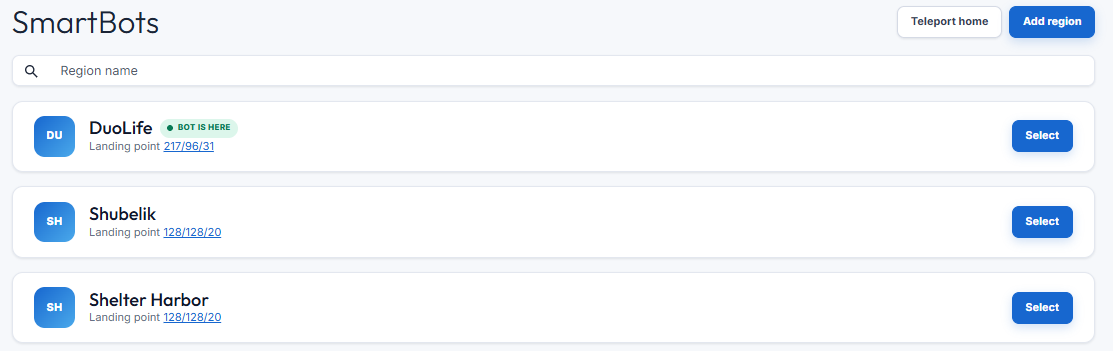
To add a new region:
Click Add region.
Enter the region's location using either a SLURL or the
Region/X/Y/Zformat.Click Save.
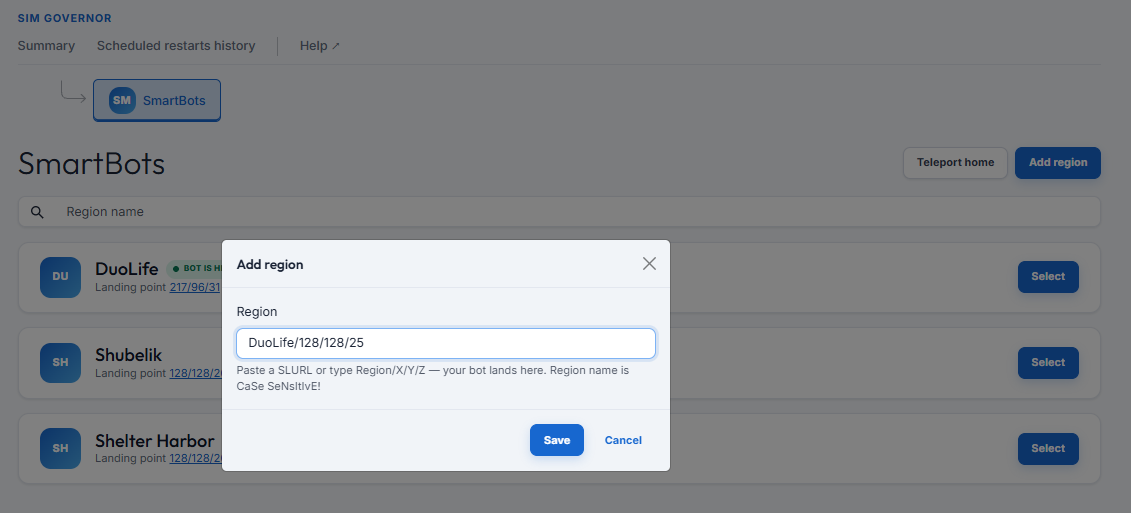
For example:
DuoLife/128/128/25
The coordinates determine where your bot will arrive when teleporting to the region.
Important: Region names are case-sensitive. Make sure the region name is entered exactly as it appears in Second Life.
Accessing a Region
Locate the region you wish to manage and click Select.
You can use the Region name search field to quickly locate a specific region when managing multiple regions.
Your bot may need to teleport to the selected region to perform administration tasks.
Configuring the Landing Point
The landing point determines where your Personal Bot arrives when teleporting to a region for administration purposes.
To change the landing point:
Open the region's administration panel.
Scroll down to the Landing Point section.
Click Change.
Configure the desired landing location.

Returning Your Bot Home
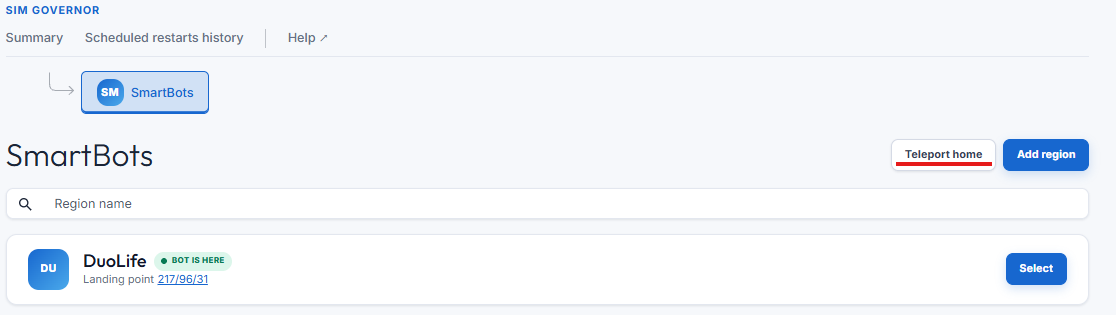
Click Teleport home on your bot's region management page to return your bot to its home location.
Removing a Region
If you no longer wish to manage a region using Sim Governor:
Open the region's administration panel.
Scroll down to the Danger Zone section.
Click Remove region.

Warning: Removing a region permanently deletes its Sim Governor configuration, including any scheduled restarts. This action cannot be undone.